
Nukkify — Bulk Product Photo Background Remover
Nukkify — Bulk Product Photo Background Remover
Short description
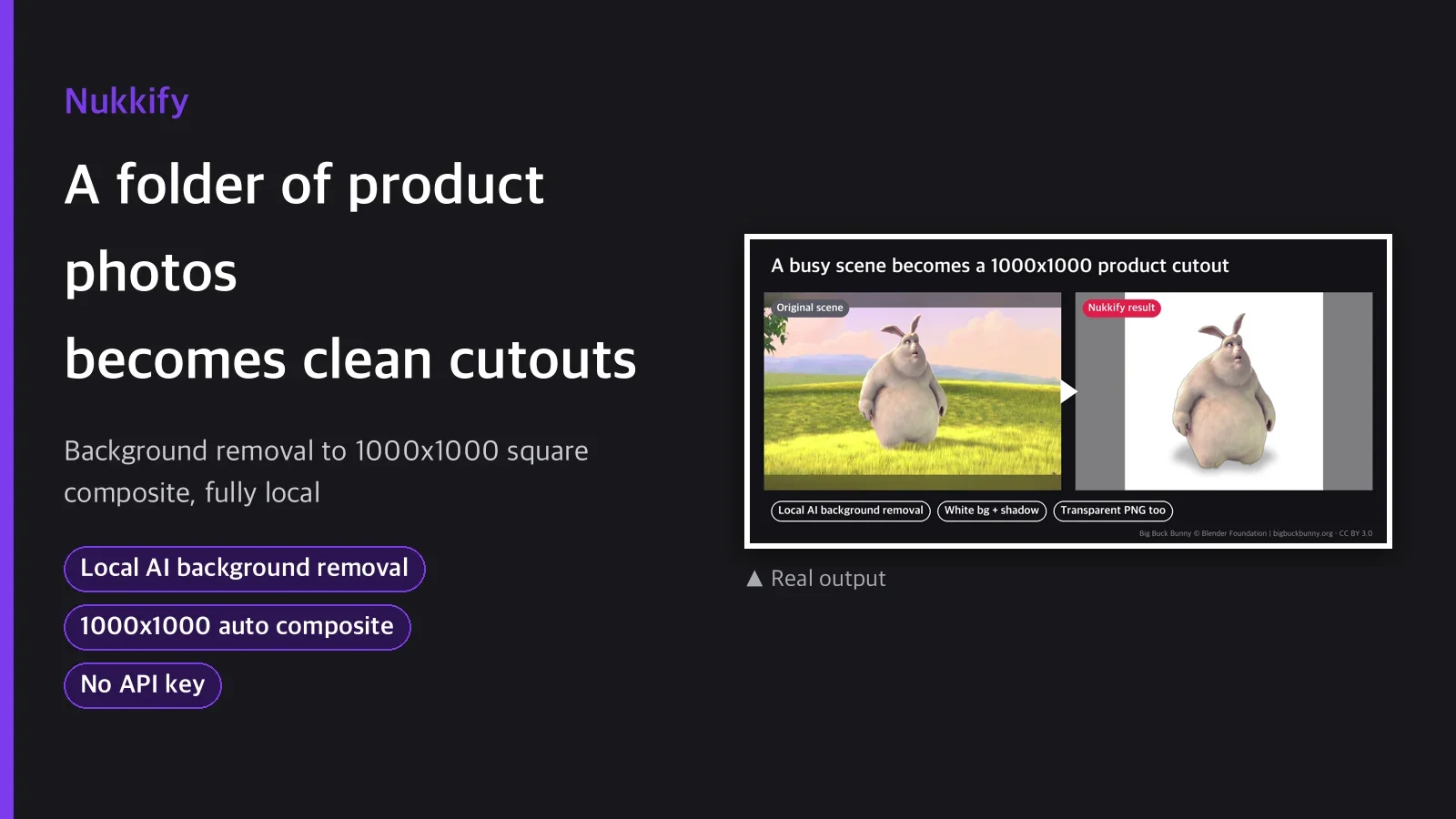
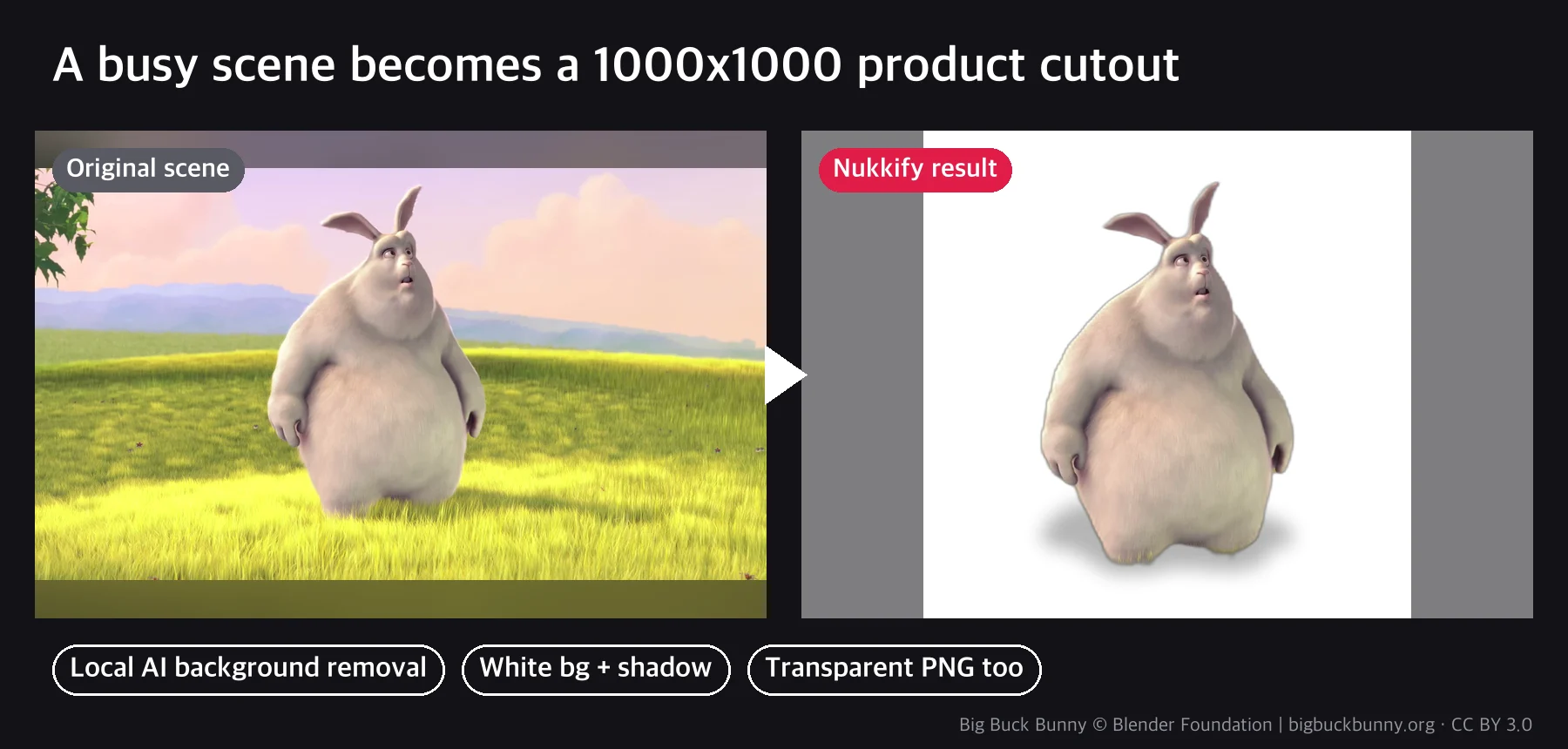
Drop in a folder of product photos and the local rembg AI model removes the background and saves
transparent PNGs. Pillow then crops tightly to the subject using the alpha channel, centers it on
a 1000x1000 square canvas while keeping the margin ratio, adds a soft ground shadow made from the
silhouette, and composites it over a background preset such as white, ivory, mint or peach. You
get a whole folder of results ready for marketplace main images (Korean marketplaces such as
Smartstore and Coupang were the target) in one run. Each run writes a summary CSV with progress,
subject bbox and file size, so you can catch bad crops right away. Everything runs locally with no
API key.
Categories
Design / Productivity / Marketing
Tags
remove background, product photo, transparent PNG, ecommerce images, bulk background removal
Suggested price
USD $7 (one-time download)
Details
After a product shoot, tracing outlines with the Photoshop pen tool always slows you down. If the
background is even a little busy, the eraser smudges the edges, you make a new canvas to get a
square, and adding a shadow means juggling several layers. With twenty or a hundred products, you
repeat all of that each time. Nukkify does it with two scripts. Put in one folder and everything
from background removal to square compositing runs as a batch.
Pipeline
- Background removal: rembg (local ONNX model u2net or isnet-general-use) keeps only the
subject in each photo and saves an RGBA transparent PNG. For thin edges such as hair, you can
turn on the alpha matting option. - Auto crop and centering: crops tightly to the subject with the alpha channel bbox, then
centers it on a 1000x1000 canvas, keeping the aspect ratio and the margin ratio you set
(default 10%). Wide products and tall products are fitted by the same command. - Ground shadow: a soft shadow made by squashing the subject's alpha silhouette vertically is
placed under it so it does not look like it is floating. - Background compositing: composites over solid white, ivory or light gray, or the mint,
peach and gray studio gradient presets.#RRGGBBand custom gradients also work.
Actual commands
uv run scripts/remove_bg.py --input samples --out out/removed
uv run scripts/compose.py --input out/removed --out out/composed --bg white
What's included
| File | Role |
|---|---|
scripts/remove_bg.py |
Background removal batch (transparent PNG + bbox/processing time summary.csv) |
scripts/compose.py |
Square composite batch (auto crop, centering, shadow, background presets) |
guides/presets-and-tuning.md |
Background preset table, margin, shadow and model tuning guide |
SKILL.md |
2-step procedure, options, limitations |
3 usage examples
- Listing 20 new products on a marketplace: put in the folder of original photos as is and
use--bg whiteto get white-background square images that meet main-image rules in one run. - Seasonal banner assets for a beauty brand: use the
--bg mintor--bg peachpresets to
give each product line a different background tone for category-specific top images on
product pages. - When you need a precise cut with hair or a clear cap: run again with
--model isnet-general-use --alpha-mattingto refine the edges (slower, but cleaner edges).
What you need
uvmust be installed. ffmpeg is not needed (it only handles still images).- The AI model downloads automatically on first run: u2net 176MB, isnet-general-use 179MB,
cached in~/.rembg/models/so they are not downloaded again. The first run needs an internet
connection. - Materials with very ambiguous edges, such as glass or mesh, may not be perfect even with
matting. In our tests, edges were clean on most solid shapes (bowls, bottles, shoes,
appliances), but with default settings a very thin outline sometimes remains. If it does, run
again with--alpha-matting. - The shadow is an approximation made by squashing the alpha silhouette, not physically based
rendering. - One photo per product is recommended. Photos with several overlapping objects were not tested.
- No color correction or white balance. The original product color is kept and only the
background is replaced.
Recommended
- Sellers who list products often on marketplaces and are tired of repeating background removal
and square fitting in Photoshop every time - Beauty and home brands that need to produce product page assets quickly with a different
background tone each season
Not recommended
- Background removal for people or model shots: this skill was tested on objects only and does
not handle photos with human faces. - High-resolution print work that needs perfect pixel-level edges: some materials (glass, very
fine mesh) are not fully handled even with alpha matting.
FAQ
Q1. Does background removal need internet or an API key?
No API key. The AI model has to be downloaded automatically once on first use, so internet is
needed only then (u2net 176MB). After that it runs fully locally.
Q2. Is the output really a 1000x1000 square?
Yes. In the E2E test we checked 9 images each for 3 background presets (white, mint, custom
gradient), and all came out at 1000x1000 without exception. You can set another size with--canvas-size.
Q3. Can a bit of the original background color remain at the edges?
With the default (u2net), a very thin outline sometimes remains. Running again with --model isnet-general-use --alpha-matting refines the edges, but processing time per image goes up.
Q4. Can I process tall and wide products with the same command?
Yes. It keeps the aspect ratio and fits the canvas automatically, so you do not need separate
options per product shape.
Q5. How do I remove the shadow?
Use the --no-shadow option to composite the background without a shadow.
Purchase notes
After downloading, follow the 2-step commands in SKILL.md. Try one folder of product photos
first, then adjust the background preset and margin ratio for your product line.
The example images are real runs on trailer scenes from the Blender Foundation open movie Big Buck Bunny (CC BY 3.0, bigbuckbunny.org).