CutMap | Video Pacing Analysis, Shot by Shot
See the whole cut rhythm of a video, shot by shot
When an edit feels slow, the usual fix is to scrub a reference video and count its cuts by hand, then guess where your own cut drags. Most pacing tools only look at the first few seconds.
CutMap measures the whole running time. Upload a video and it finds every shot boundary, measures every shot, counts cuts in each 10-second window and returns the numbers as a chart, a thumbnail sheet and marker files you can load into your editor. Upload your own cut together with a reference and it shows, window by window, where yours has fewer cuts.
It is an analysis tool. It does not cut, trim, remove silence or render anything. Your video stays as it is.
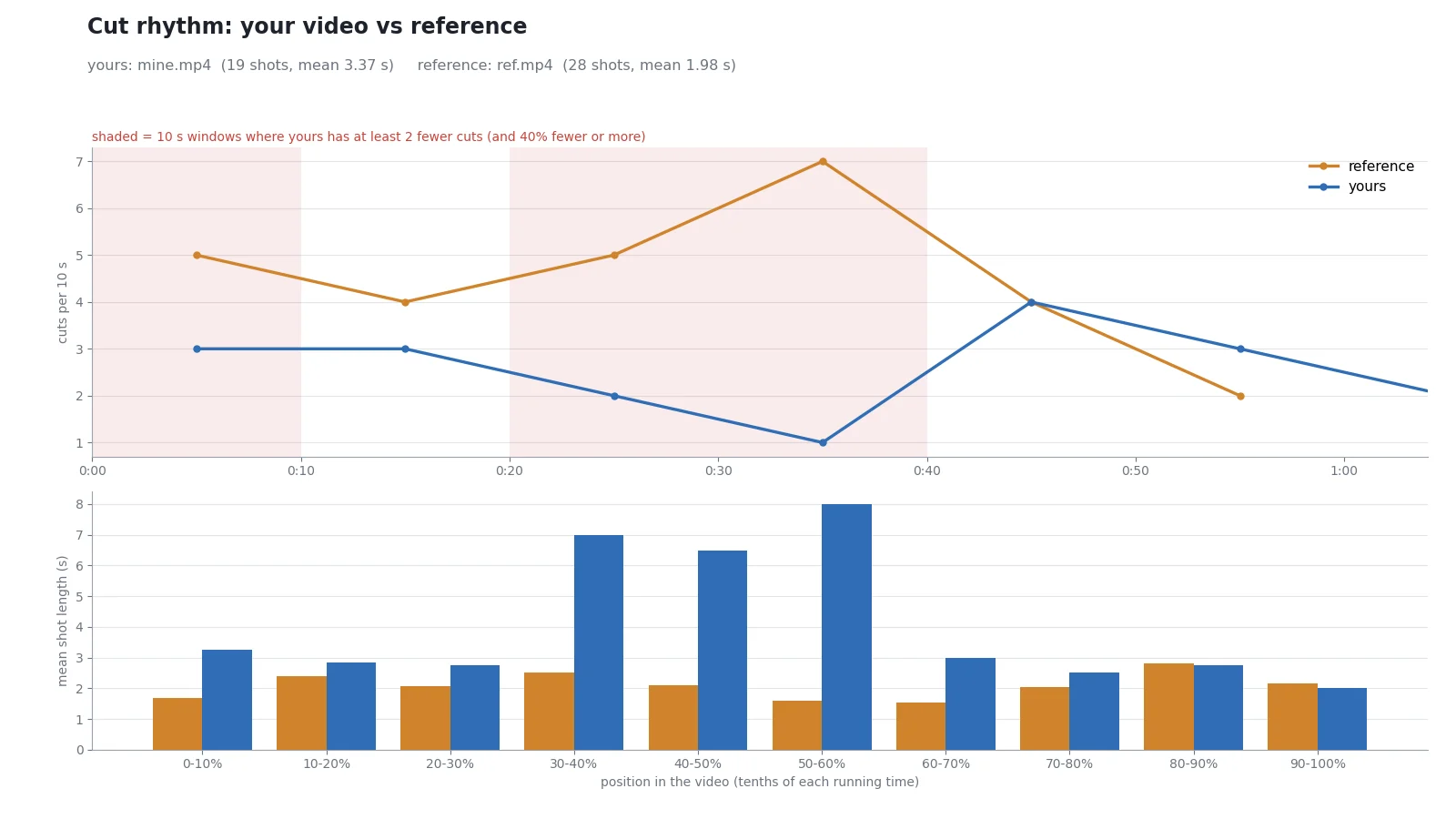
A comparison from the test videos below: in 0:20-0:40 the first video has 3 cuts and the reference has 12.
How you use it
Here is my edit (mine.mp4) and a reference I like (ref.mp4). Where is mine slower?
That is all. No install, no settings. It runs in the Capafy cloud.
What you get back
| File | What it is |
|---|---|
rhythm.png |
Cuts per 10-second window (top) and every shot's length over time (bottom). Shots at least twice the median length are red |
compare.png |
Two videos: both cut-rate lines, slower windows shaded, mean shot length by tenth of each video |
shots_sheet_01.png ... |
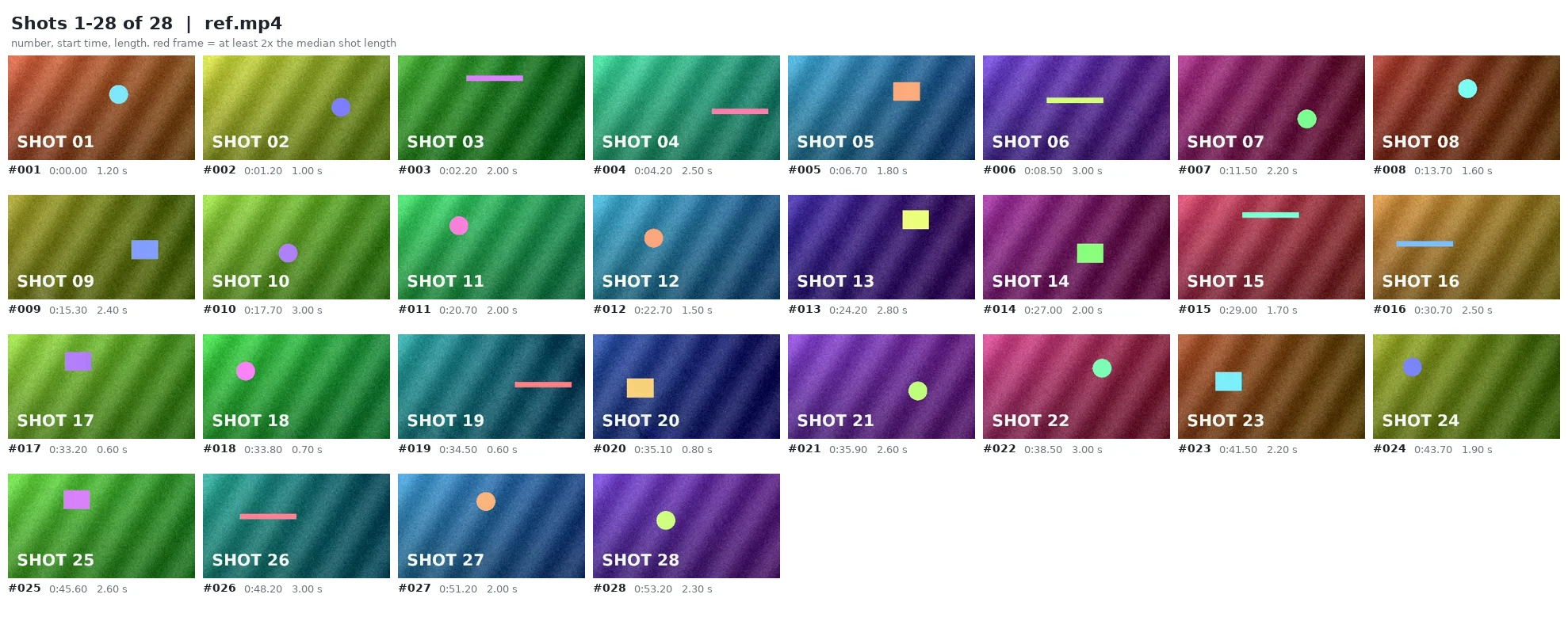
One frame from every shot with its number, start time and length, 80 shots per sheet |
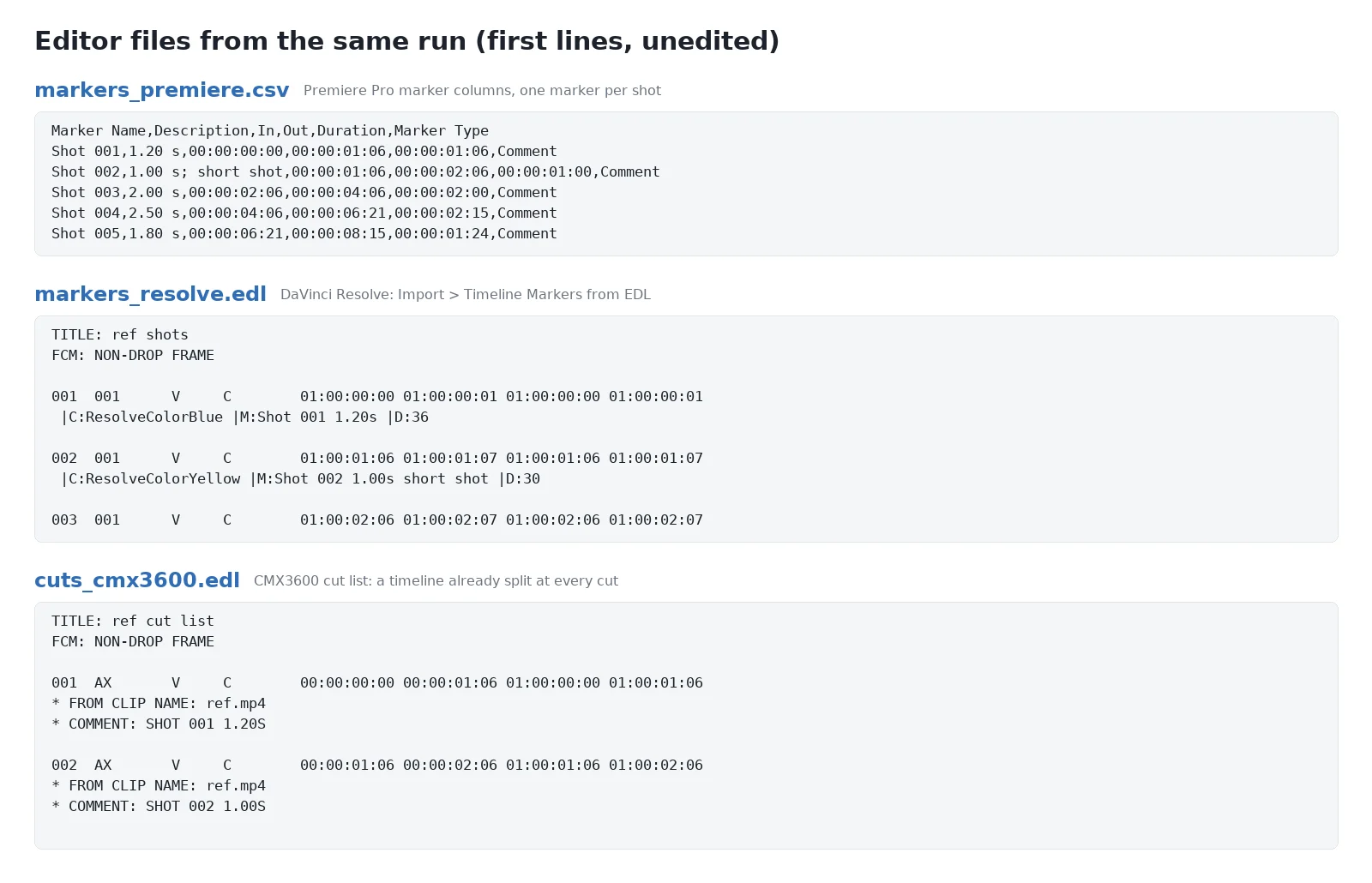
markers_premiere.csv |
One marker per shot in the columns Premiere Pro uses when it exports markers: Marker Name, Description, In, Out, Duration, Marker Type |
markers_resolve.edl |
Timeline markers for DaVinci Resolve (Import > Timeline Markers from EDL). Blue = normal, red = long shot, yellow = short shot |
cuts_cmx3600.edl |
CMX3600 cut list. Import it and relink to your file to get a timeline already split at every detected cut |
shots.csv |
One row per shot (timecode, seconds, frames) for spreadsheets |
notes.md |
A short written summary that uses only the measured numbers |
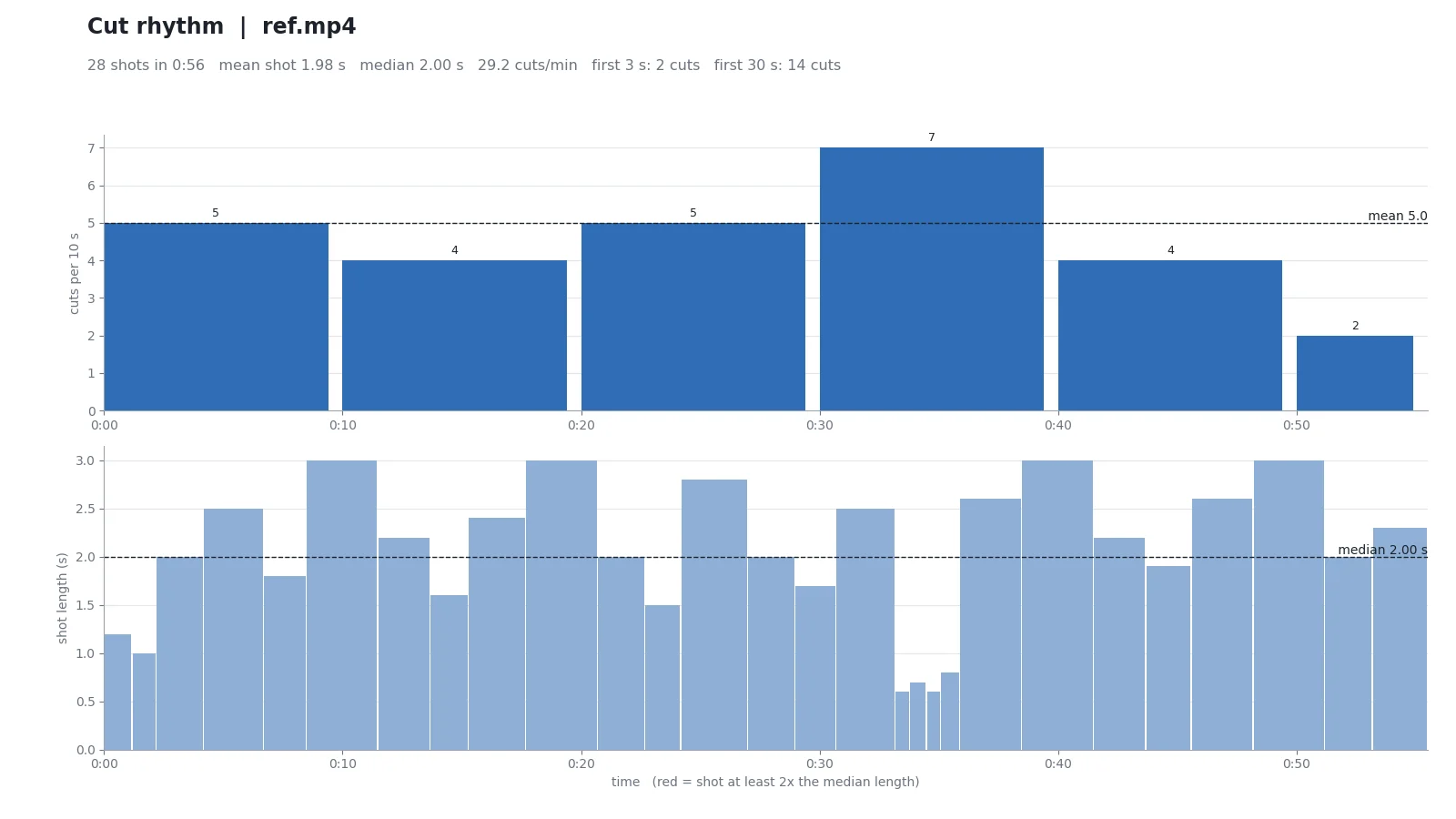
Single-video analysis of the 55-second test reference: 28 shots, mean 1.98 s, 2 cuts in the first 3 seconds.
What it measures
- Shot count, cut count, cuts per minute
- Mean, median, shortest and longest shot, 10th and 90th percentile shot length
- Cuts in the first 3 seconds and the first 30 seconds, time of the first cut
- Cuts in every 10-second window, the busiest and quietest windows
- The five longest shots with start times
- With two videos: the same numbers side by side, every 10-second window compared, and the slower stretches with the number of cuts by which yours falls short of the reference
The written notes use only these numbers. A checker script rejects any number that is not in the measured facts, so the summary cannot invent a statistic or predict views.
How it works
- Decode. Every frame is decoded at 320 px wide and a constant frame rate (ffmpeg via imageio-ffmpeg).
- Detect. PySceneDetect's adaptive detector compares each frame with its neighbours and marks a cut where the change jumps above the local level. Shots shorter than 0.25 s are merged.
- Measure. A script computes the shot list, the 10-second windows and, with two videos, the comparison.
- Export. Charts, thumbnail sheets, marker CSV and EDL files are written; the AI writes a short summary from the numbers and checks it.
Time
Measured on a 2 CPU / 4 GB stand-in for the sandbox:
| Video | Time |
|---|---|
| 55 s, 720p, 30 fps | 3 s |
| Two clips of 64 s and 55 s, compared | 6 s |
| 30 min 31 s, 1080p, 30 fps | 193 s |
| 55 s, 4K, 60 fps | 16 s |
Roughly one tenth of the running time for 1080p 30 fps, about three tenths for 4K or 60 fps. The hosted sandbox can be slower than this test.
Plans and requests
Every message you send uses 1 request from your plan.
| Plan | Price | Requests |
|---|---|---|
| Daily | $2.99 | 5 |
| Weekly | $5.99 | 10 |
| Monthly | $14.99 | 30 |
The weekly plan starts with a 1-day free trial that includes 1 request.
What it does not do
- Download from YouTube, TikTok or other links. Upload the file.
- Edit your video: no cutting, trimming, silence removal or rendering.
- Analyse audio, speech, colour or audience retention.
- Predict views, retention or revenue, or tell you a "right" number of cuts.
- Treat picture-in-picture, split screens or on-screen text changes as cuts.
Good to know
- Files: MP4, MOV, MKV, WEBM. Up to 60 minutes per video, 30 minutes for 4K or 60 fps files.
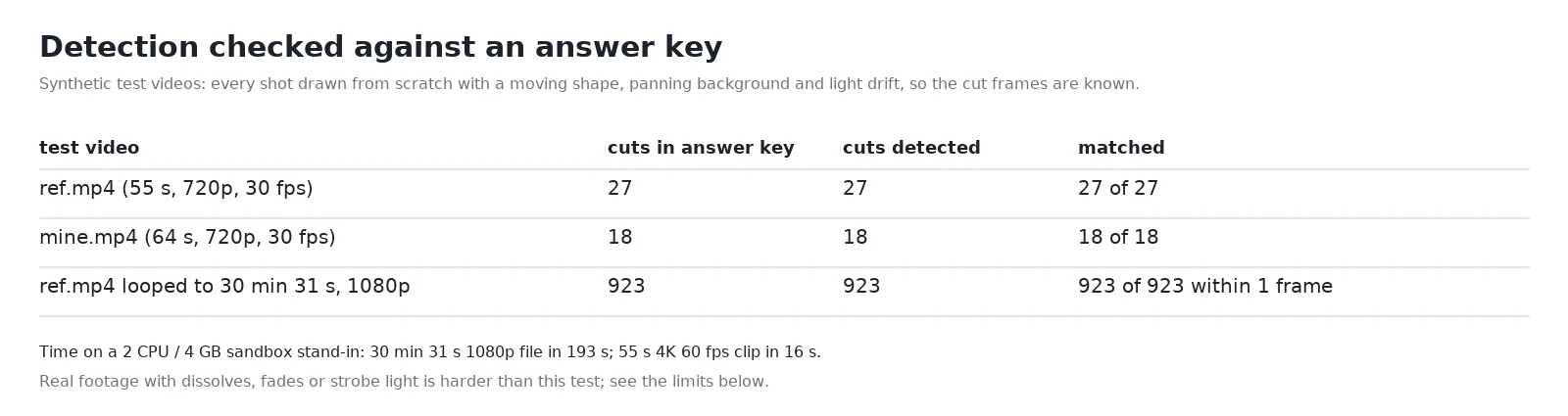
- Hard cuts are found reliably. Slow dissolves, fades and whip-pan transitions can be missed or placed a few frames off, and strobe light or camera flashes can add a cut. If soft cuts are missed, ask for a lower threshold and it reruns.
- Timecode is non-drop-frame from the start of the file (29.97 fps uses a 30-frame timebase). The EDL timeline starts at 01:00:00:00 unless you ask for 00:00:00:00.
- An EDL holds up to 999 events; longer cut lists come as
_part2,_part3files. - The marker CSV follows Premiere's marker export columns. Whether your Premiere version imports a marker CSV directly depends on the version; the CMX3600 EDL imports in Premiere Pro and DaVinci Resolve without a plugin.
- The marker and EDL files were checked against the formats, not opened in every editor version.
- Use it on videos you made or have the right to analyse. Studying the pacing of a reference is fine; re-uploading someone else's video is not something this tool does.
FAQ
Q. What counts as one request? Every message you send uses 1 request. Uploading two videos and asking for a comparison in one message is one request.
Q. Does my video leave the workspace? No. Detection and rendering run inside the agent's cloud workspace. The only network use is installing Python packages from PyPI when the workspace is built.
Q. Can it compare videos of different lengths? Yes. The 10-second windows are compared over the common running time, and the tenths chart compares the same relative positions of each video.
Q. Which editors can use the files? The CMX3600 EDL is a standard cut list for Premiere Pro, DaVinci Resolve and most NLEs. The Resolve marker EDL is for DaVinci Resolve. The marker CSV and shots CSV open in any spreadsheet.
Q. Questions? [email protected]