

Image to J-Pop: AI Music Generator
Sample songs: YouTube
Create a song from an image
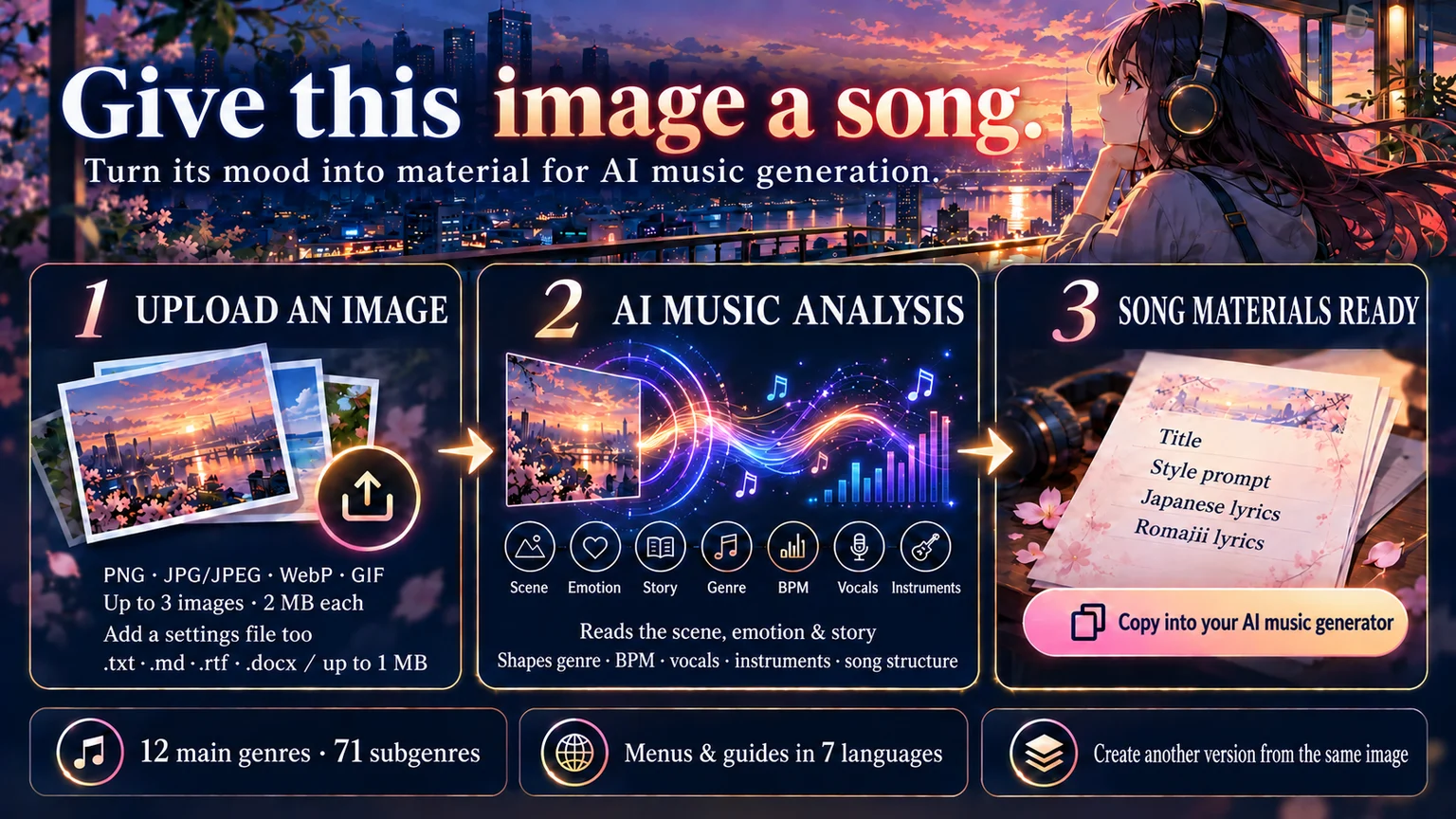
“What if this character’s feelings became a song?” “What story could this scenery become as music?” “I want to turn what I felt into a song.” Image to J-Pop turns these ideas into music materials. One main image is enough; no music knowledge or songwriting experience is needed. Photos and illustrations are supported.
Turn an image into a musical concept
We interpret the people, places, time, weather, light, colors, expressions, poses, gaze, clothing, composition, season, atmosphere, and impressions such as stillness, energy, loneliness, intimacy, nostalgia, modernity, retro, fantasy, or everyday life, along with the story and emotional changes suggested by the image.
Genre, tempo, vocals, instruments, song structure, and lyrics are brought together into a coherent musical concept. Lyrics express the emotions of the scene through a narrator’s voice or a story instead of listing pictured objects or colors. Verse depicts a scene, Pre-Chorus builds emotion, and Chorus expresses the central feeling. Japanese is refined to sound natural and singable; pronunciation-conscious romaji is then created and checked line by line against each section.
Supporting images and settings file
Add up to two supporting images to provide details such as another expression or outfit, a place, background, time, season, or different scene. Supported formats are PNG, JPG/JPEG, WebP, and GIF; each image must be 2 MB or smaller, with up to three images total. HEIC is not supported.
A settings file can include memories or episodes, character traits or relationships, a story or world, words for the lyrics, or a preferred main genre or subgenre. Upload it with the image to combine your settings with what the image conveys. One txt, md, rtf, or docx file is supported, up to 1 MB.
12 main genres and 71 subgenres
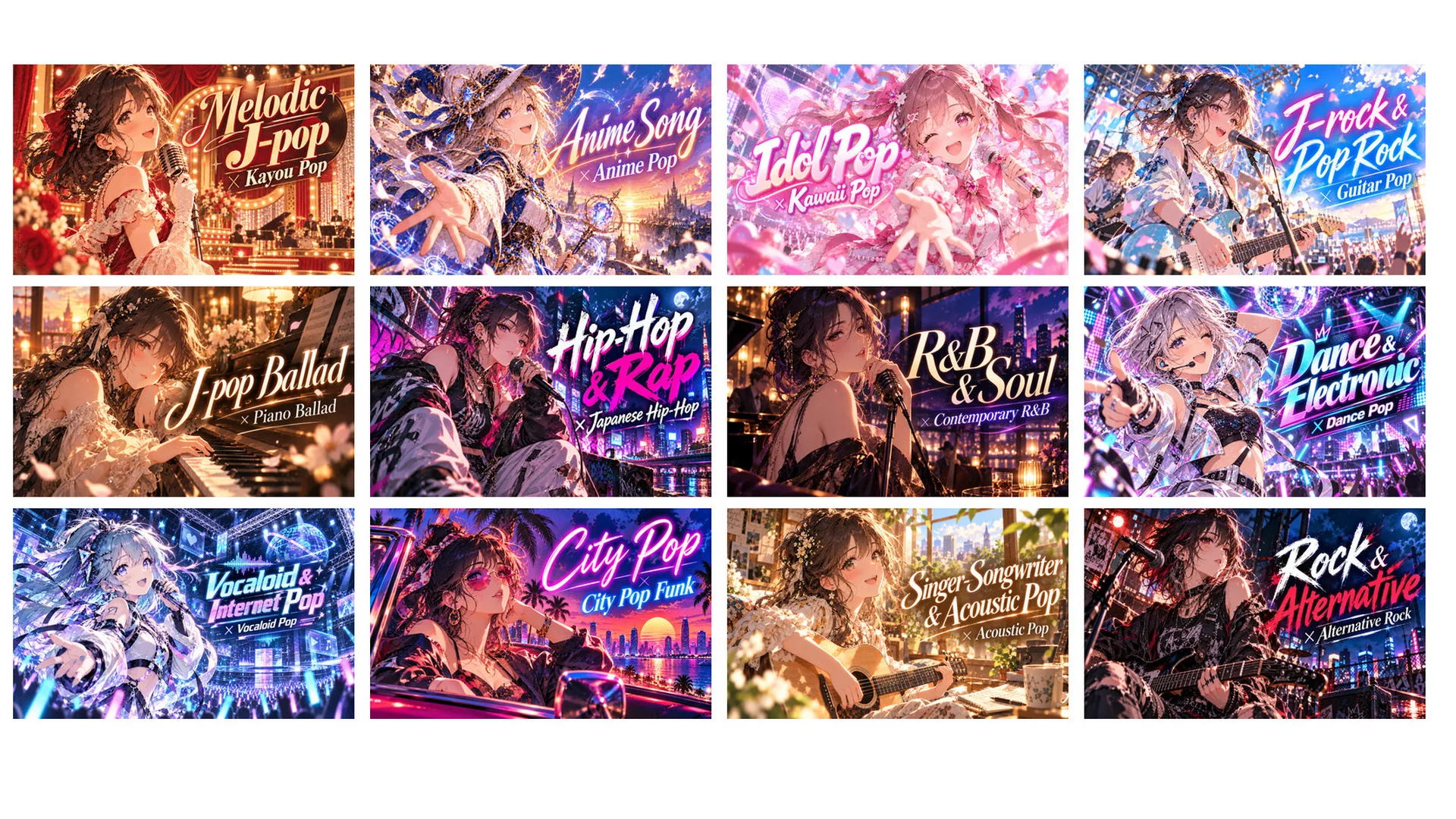
The image’s atmosphere guides the song among J-pop, anime songs, idol pop, rock, ballads, hip-hop, R&B, dance and electronic music, Vocaloid, city pop, and more. The system selects a fitting combination from 12 main genres and 71 subgenres. To specify one, choose a main genre and subgenre from the list and write “Genre [Main Genre] + [Subgenre]” in the settings file. If the requested genre is not listed, the closest one is chosen.
The main genre defines the broad style; the subgenre adds specific sound and mood. Melodic J-pop centers on melody, Kayou Pop adds the familiarity of Japanese popular song, and Chamber Pop brings delicate, rich sounds such as strings. The subgenre changes the impression even when the main genre stays the same.
| Main genre | Subgenre |
|---|---|
| Melodic J-pop | Kayou Pop / Chamber Pop / Baroque Pop / Sophisti-Pop / Sunshine Pop |
| Anime Song | Anime Pop / Anime Rock / Anime Ballad / Orchestral Anime Pop / Electronic Anime Pop |
| Idol Pop | Kawaii Pop / Bubblegum Pop / Idol Dance Pop / Idol Electropop / Idol Rock |
| J-rock & Pop Rock | Guitar Pop / Indie Rock / Pop Punk / Emo Pop / Anthem Rock |
| J-pop Ballad | Piano Ballad / Acoustic Ballad / Orchestral Ballad / R&B Ballad / Power Ballad |
| Hip-Hop & Rap | Japanese Hip-Hop / Boom Bap / Trap / Drill / Pop Rap / Melodic Rap / Alternative Hip-Hop |
| R&B & Soul | Contemporary R&B / Alternative R&B / Neo-Soul / Quiet Storm / New Jack Swing / Funk Soul |
| Dance & Electronic | Dance Pop / House / Techno / Trance / Future Bass / Drum & Bass / Breakbeat / Electro Swing |
| Vocaloid & Internet Pop | Vocaloid Pop / Vocaloid Rock / Vocaloid Ballad / Vocaloid Metal / Denpa Pop / Internet-Born Pop |
| City Pop | AOR / Boogie / City Pop Funk / City Pop Disco / Mellow City Pop |
| Singer-Songwriter & Acoustic Pop | Folk Pop / Folk Rock / Acoustic Pop / Piano Pop / Bedroom Pop / Lo-fi Chill Pop |
| Rock & Alternative | Alternative Rock / Hard Rock / Heavy Metal / Metalcore / Progressive Rock / Post-Rock / Symphonic Metal / Idol Metal |
Sample songs: YouTube
Create another version
If the result does not match your vision, create another version from the same image or settings file. The title, lyrics, genre, tempo, rhythm, structure, main instruments, and emotional progression can vary. If the settings file specifies a genre or BPM, those settings are kept in other versions while the other elements change.
Results and display languages
Four blocks are generated: the Japanese song title and its translation into the display language, an English style prompt, Japanese lyrics, and romaji lyrics. Use either the Japanese lyrics or romaji. Romaji follows custom rules to reduce Suno misreadings and stay close to Japanese pronunciation; it is recommended for Suno. The style prompt is also prepared for Suno.
Seven languages are supported: Japanese, English, Traditional Chinese, Korean, Brazilian Portuguese, French, and Spanish. Enter a language code to switch. Analysis results, Source Note headings and labels, guidance, menus, and translated song titles appear in the selected language. Lyrics are in Japanese, romaji lyrics in romaji, and style prompts in English.
How to get started
- Add one main image and, if needed, up to two supporting images. Supported formats: PNG, JPG/JPEG, WebP, and GIF; up to 2 MB per image.
- If needed, add one settings file in txt, md, rtf, or docx format, up to 1 MB.
- Japanese is the default display language. Enter EN, ZH-TW, KO, PT-BR, FR, or ES with the image or settings file to switch; enter JA to return to Japanese.
- Uploading the image or settings file starts the analysis and generates music materials.
- Copy the title, style prompt, and lyrics into your AI music generator.
- Enter 1 to create another version with the same image or settings file. Upload a different file to use it.


