
SubCue Cloud | Auto subtitles + burned-in video
SubCue Cloud | Upload a video, get subtitle files and a burned-in video

Subtitling a single video doesn't end at transcription. When two or three lines pile onto the screen at once for 6–7 seconds, viewers lose their place, so you have to re-split the cues. Translate, and the text runs longer, so you re-time it again. Then there's still burning it onto the video. For a 20-minute clip, that's half a day gone.
SubCue Cloud handles that whole sequence in one pass. Upload a video to the chat, type “make subtitles,” and SRT, VTT, and a burned-in MP4 come back in the same conversation. It runs on Capafy's cloud, so there's nothing to install on your machine — no Python, no ffmpeg — and no translation API key.
How to use it
Upload a video to the chat and type a single line.
- “Make subtitles.”
- “Add English and Japanese subtitles too.”
- “Burn the English subtitles into the video — in a box at the top.”
- “The lines are too long. Cap them at 14 characters.”
What you get back
| File | What it is |
|---|---|
name.ko.srt, name.ko.vtt |
Subtitles in the spoken language. Drop them straight into any editor or upload site |
name.en.srt, name.en.vtt |
One pair for each translation language you ask for |
name.ko.burned.mp4 |
The video with subtitles burned in. Same resolution as the source, H.264/AAC |
summary.md |
Cue counts per language and the quality-check results |
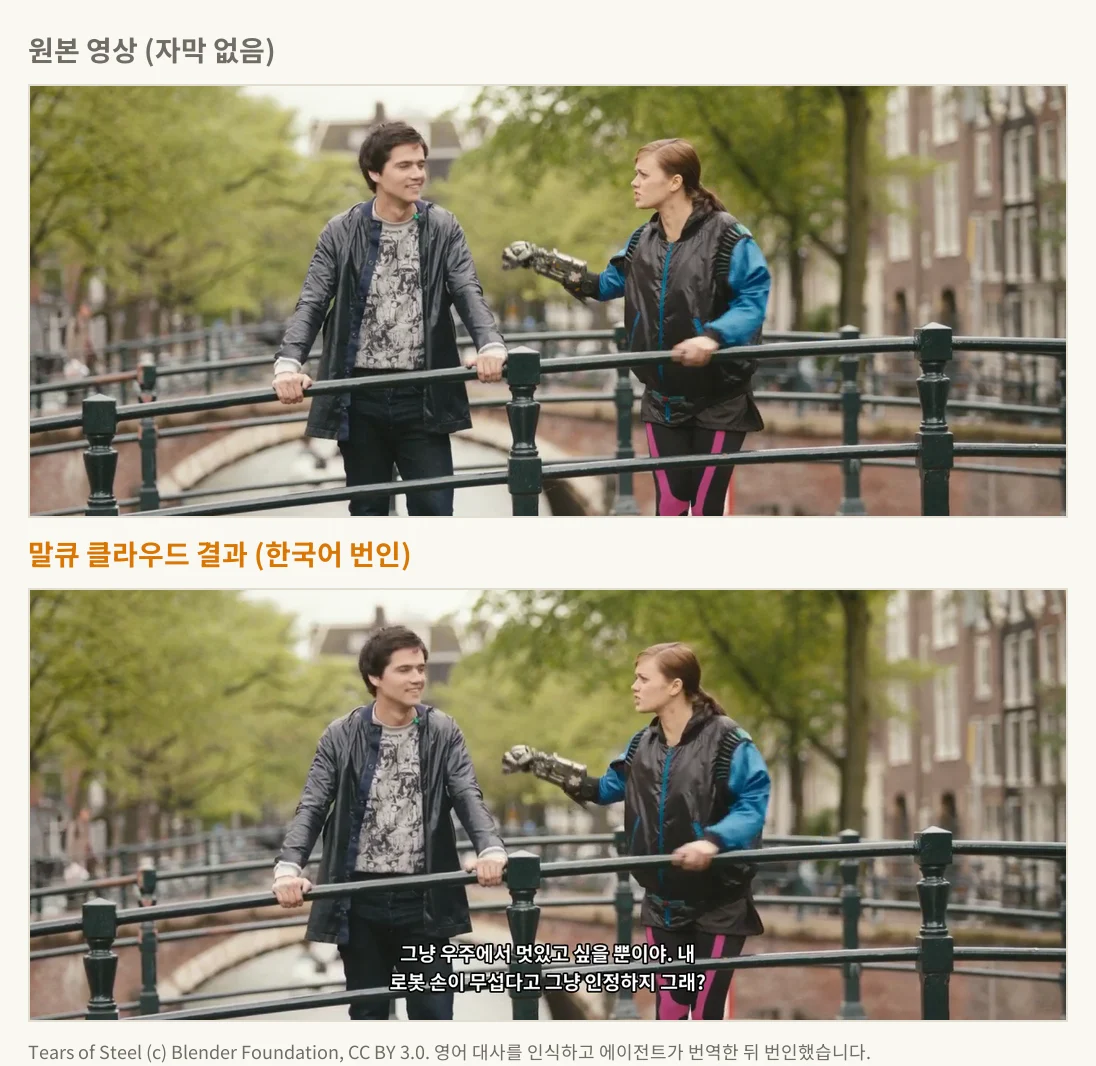
Tears of Steel (c) Blender Foundation, CC BY 3.0. The English dialogue was transcribed, translated by the agent, and burned in.
What happens under the hood
Upload ─► Transcribe ─► Re-split cues ─► Quality check ─► Translate (agent) ─► Cross-check ─► Burn in ─► Deliver files
          per-word       line & char      overlaps,         fills the            compares cue    overlays
          timings        counts, CPS      empty cues, gaps   worksheet directly   #, index,       glyph PNGs
          (faster-whisper)                                                        timecodes       onto the video
- Transcription. faster-whisper returns a start and end time for every word. The language is detected automatically.
- Re-splitting cues. Cues are re-split to at most 2 lines, 18 characters per line for Korean, 17 characters per second, and an on-screen time of at least 1 second and at most 7. Lines break at word boundaries, preferring the spot right after a comma. For English the targets are 42 characters per line and 21 per second; for Japanese and Chinese, 16 per line and 13 per second.
- Translation. No translation API is called. The agent reads the full transcript and fills in a translation worksheet. When one sentence spans several cues, it translates with that flow in mind.
- Cross-check. If the translation's cue count, numbering, or timecodes differ from the original in any way, that language file isn't produced — and you're told exactly where it went wrong.
- Burn-in. A glyph image is rendered for each cue and overlaid on the video. Pick white text with a black outline (the default) or a semi-transparent box, positioned at the bottom or the top. For vertical video, font size and margins are set separately.
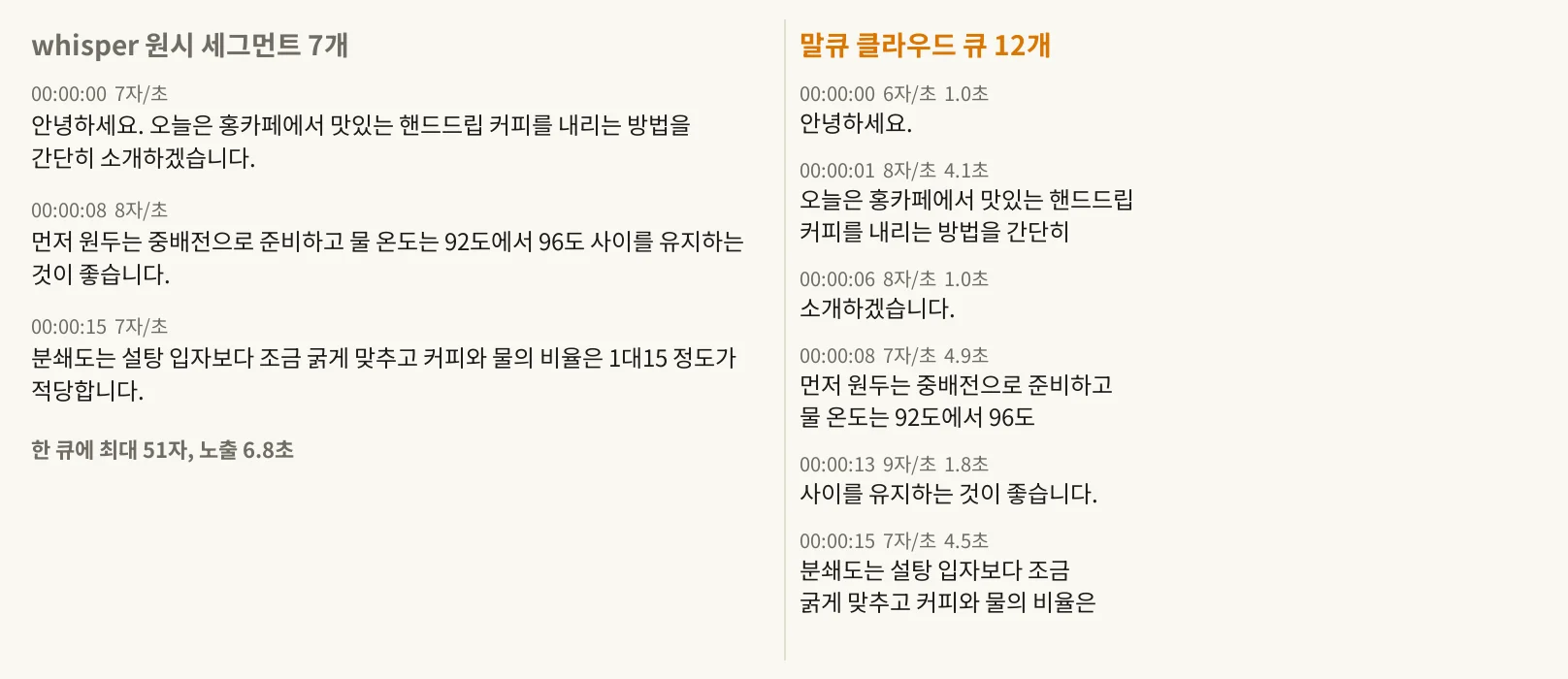
On the left, the cues are exactly as Whisper first split them — up to 51 characters crammed into one cue for 6.8 seconds. On the right, SubCue Cloud has re-split them, and both line length and characters-per-second land within the limits. The “홍카페” on the left is a mishearing of “홈카페” (home café) — recognition errors like this are unavoidable with any speech recognizer.
Real-world runs
Measured on an Ubuntu container with 2 CPUs, 4 GB of memory, and the small transcription model.
| Input | Cues | Transcribe | Burn-in | Notes |
|---|---|---|---|---|
| Korean, 42s, 1280x720 | 7 → 12 (Whisper) | 10s | 3–7s | Quality check clean |
| English, 2m25s, 1280x534 | 18 | 9s | 29s | 24.4 MB output |
| English, 9m40s, 1280x534 | 60 | 36s | 109s | Peak memory 0.9 GB |
On the first run, the workspace needs an extra 20–70 seconds to download the fonts (about 10 MB) and the transcription model (about 460 MB). Translation is time the agent spends, so it's counted separately and scales with the number of cues and languages. A 1920x1080 burn-in should take roughly 3x longer than the table above (an estimate, not measured).
What it won't do
- Translations are drafts. Anything that can't afford to be wrong — legal, medical, or contract material — needs a human to review it.
- No speaker labels, no song-lyric timing, no text-animation effects. One subtitle style per video.
- Overlapping voices, heavy dialects, speech buried under music, jargon, and proper nouns can all come out wrong. Give the result a read before you use it.
- Videos longer than 20 minutes aren't processed. Split them up and upload the pieces.
- Japanese and Chinese line breaks are placed at character-type boundaries rather than by morphological analysis, so a compound word occasionally breaks mid-word.
- No accuracy figures are promised. Sample results are just samples.
FAQ
Do I need to install anything? No. Upload a video and just chat.
Which files are supported? MP4, MOV, MKV, and WEBM video, plus MP3, WAV, and M4A audio — up to 20 minutes and 2 GB. Audio files return subtitle files only, with no burned-in video.
How many languages can it translate into? Any language the agent can translate. The line-length rules are tuned for Korean, English, Japanese, and Chinese; other languages use 20 characters per line and 18 per second. The burn-in fonts cover Korean, Japanese, Latin scripts (English and others), and Russian. For Simplified Chinese, Thai, and Arabic, you can get the SRT/VTT files only.
What if a translation looks off? In the same conversation, say something like “make cue 3 shorter” or “use a more formal tone,” and it fixes that part and regenerates.
Can I get just the files, without burning subtitles into the video? Say “files only” and it skips the burn-in.
Does my video leave the workspace? Everything is processed inside the agent's cloud workspace. The only things pulled in from outside are the transcription model and fonts, downloaded once; your uploaded video and subtitles are never sent anywhere.
Questions? [email protected]
Pricing
| Plan | Price | Requests |
|---|---|---|
| Weekly | US$3.99 | 5 |
| Monthly | US$9.99 | 15 |
| Annual | US$79.99 | 12/month |
Each plan comes with a fixed number of requests. There's no free trial. Cancel anytime.
Sample video: Tears of Steel (c) Blender Foundation | mango.blender.org, CC BY 3.0.