

Hyperframes - Online Skill
HyperFrames
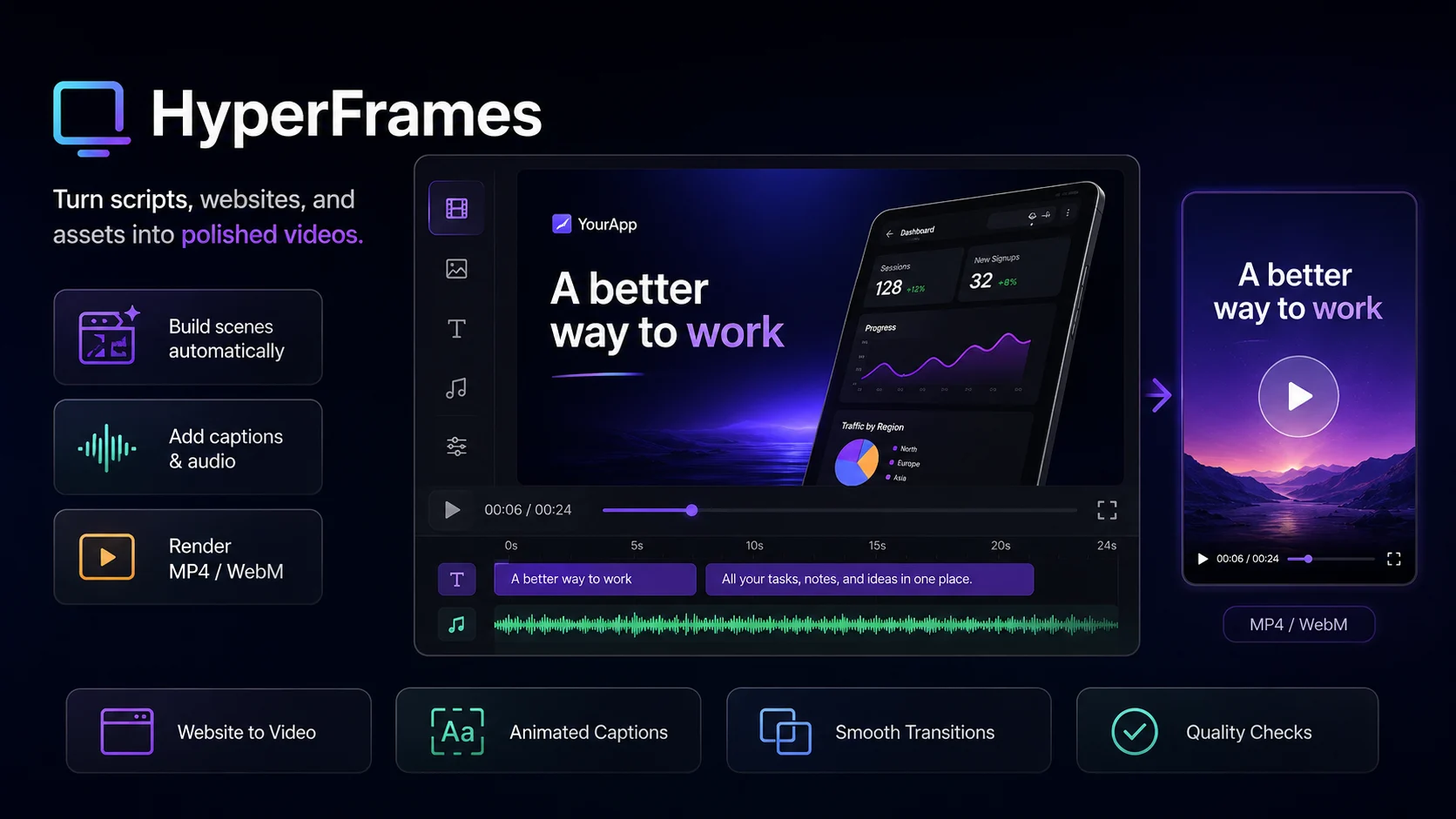
HyperFrames turns an idea, script, website, or set of assets into a finished motion graphics video.
Describe what you want to make and it can build the scenes, layout the visuals, animate them, add transitions and audio, then render the result as an MP4 or WebM file.
It works especially well for product videos, social content, animated explainers, title sequences, captioned videos, and other designs that would normally require a mix of motion design and frontend work.
From an idea to a real video
You don't need to provide animation code.
Start with something as simple as:
Make a 20-second launch video for my productivity app. Keep it minimal, use a dark background, and show the three main features.
HyperFrames can turn that into a structured video with multiple scenes, typography, product visuals, motion, transitions, and timing.
If you already have a script, brand colors, screenshots, video clips, music, or other assets, you can include those too.
The video is built as an HTML composition with CSS and GSAP animation, then rendered frame by frame and encoded into a standard video file.
Make product and promo videos
HyperFrames is a good fit when the video needs to explain or show something rather than generate a completely synthetic scene.
You can use it for:
- Product launch videos
- App and SaaS promos
- Feature walkthroughs
- Animated explainers
- Social media videos
- Kinetic typography
- Title cards and intros
- Lower thirds and overlays
- Captioned narration videos
- Data and UI animations
- Videos built around existing images or footage
Because the layout is built with HTML and CSS, text, interface elements, cards, charts, screenshots, and branded graphics can stay sharp and precisely positioned.
Turn a website into a video
Give HyperFrames a website URL and it can use the site as the starting point for a promo video.
It can capture the page and work with its visible content, assets, typography, colors, and screenshots before reorganizing them into a video rather than simply recording someone scrolling through the page.
A typical workflow might turn:
Your homepage + product copy + screenshots
into:
Hook → product introduction → feature scenes → key benefit → closing scene
This makes it useful for turning an existing product page into launch content without designing the video from scratch.
Captions and narration
HyperFrames can also build videos around spoken audio.
Give it a script and it can generate narration, transcribe the audio into word-level timing, and use those timestamps to create synchronized captions.
Captions can be styled for different kinds of content rather than appearing as plain subtitles. They can be animated, grouped, emphasized, and timed to the speech.
You can also provide your own audio or narration instead.
Core TTS and transcription workflows can run locally, so the standard workflow does not require an external API key.
Motion that follows the audio
Music and narration don't have to sit underneath a static animation.
HyperFrames can analyze audio and use its energy to drive visual behavior. Bass can affect scale, stronger moments can change intensity, and individual elements can react to different parts of the sound.
That makes it possible to create music-driven promos, animated typography, visualizers, and social videos where the motion actually feels connected to the audio.
Scene transitions
Multi-scene videos can use transitions instead of hard cuts.
Depending on the style, HyperFrames can build:
- Push and slide transitions
- Blur crossfades
- Zoom transitions
- Block transitions
- Flash-through-white
- Liquid wipes
- Warp effects
- Chromatic transitions
The transition style can follow the rest of the visual direction rather than being added randomly between scenes.
Start with a visual direction
Before building the animation, HyperFrames establishes how the video should look.
You can give it an existing design system or simply describe the direction:
Clean and editorial, lots of whitespace.
Dark, technical, and fast.
Warm colors with soft motion.
Bold Swiss-style typography.
It can then carry the same colors, typography, spacing, and motion language through the video instead of giving each scene a different look.
If you're working from an existing website or brand, those visuals can be used as the reference.
Built for precise motion graphics
HyperFrames renders HTML and GSAP animations frame by frame instead of screen-recording a browser animation.
That makes timing deterministic: the same point in the timeline should produce the same frame every time.
This approach works particularly well for typography, UI, diagrams, screenshots, overlays, and other motion graphics where layout and timing need to stay precise.
You can render at:
- 24, 30, or 60 FPS
- Draft, standard, or high quality
- MP4 or WebM
Checks before the final render
A video can look fine at the beginning and still have a caption run off screen three seconds later.
HyperFrames includes checks for problems that are easy to miss during generation, including:
- Elements outside the frame
- Text and card overflow
- Poor text contrast
- Overlapping tracks
- Missing animation timelines
- Elements hidden behind transitions
- Layout problems at different points in the video
The composition can be previewed and checked before the final high-quality render.
What you can give it
You can start with very little:
- A short description of the video
- A script
- A website URL
Or provide more context:
- Brand guidelines
- Screenshots
- Images
- Video clips
- Music
- Voice recordings
- Existing HTML
- Colors and fonts
- A reference for the visual style
The more useful material you provide, the more closely the finished video can follow your product or brand.
Example requests
Create a 15-second product launch video for my AI note-taking app. Use these screenshots and keep the design minimal.
Turn my landing page into a 30-second SaaS promo video for X.
Make an animated version of this script with narration and word-by-word captions.
Create a vertical social video using this product demo, with bold captions and smooth scene transitions.
Make a short kinetic typography video synced to this audio track.
Create a clean feature walkthrough from these three app screenshots.
Output
The final result is a rendered video file rather than a storyboard or a text description of what the video could look like.
Depending on the task, the project can also include the underlying HTML composition and assets used to produce the video.
Source
HyperFrames was created by HeyGen and is included in the NousResearch Hermes Agent skill collection under the Apache 2.0 License.
Source:
https://github.com/NousResearch/hermes-agent/tree/main/optional-skills/creative/hyperframes


