Receipt to Excel — Local Kit (Download)
Receipt to Excel
What you're buying: a download package (skill instructions + Python scripts) that runs on your own computer inside your own AI agent — it is not a cloud service.
You need: an AI agent that supports skills and can read images (e.g. Claude Code or Codex) — its subscription or API costs are yours; Python 3.9+ withpillow,pypdfium2andopenpyxl.
Third-party services: none. The scripts work offline. Receipt images are read by your own AI agent, so its provider's data policy applies.
A folder of receipts in, a tidy Excel workbook out. No typing, no subscription, and your data stays on your computer.
What you get
- 📊 Receipts sheet: one row per receipt — date, vendor, seller and buyer tax IDs, invoice number, currency, net, tax, tip, total, category, payment method, items, confidence and source file. Filters and frozen panes; rows needing review are yellow, duplicates grey.
- 📈 Summary sheet: month × category SUMIFS formulas, per currency. Edit a row and the totals update.
- 🔍 Review sheet: every receipt that needs a human check and why, plus duplicate files and unread pages.
- ℹ️ About sheet: when it was generated, plus a disclaimer.
Example
A folder of 6 files — a Taiwan e-invoice (plus an identical copy), a triplicate invoice dated in the ROC calendar, a US coffee-shop receipt with tip, an English PDF invoice and a blurry, skewed taxi receipt:
- 5 pages read; the duplicate file was skipped and listed on the Review sheet
- ROC date 115/04/02 correctly converted to 2026-04-02; invoice numbers normalised
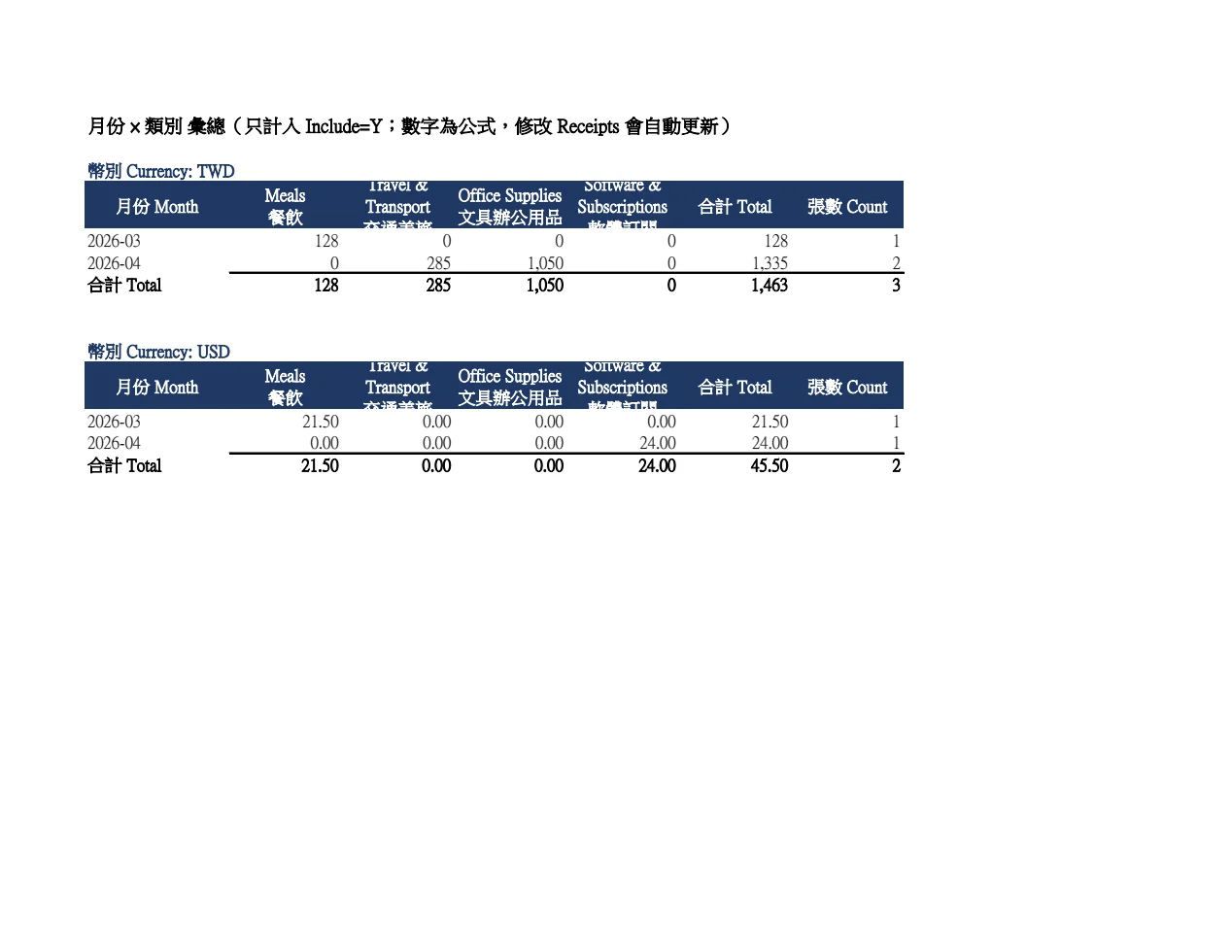
- Summary: TWD 1,463 (3 receipts) and USD 45.50 (2 receipts) — live SUMIFS formulas that recalculate correctly in Excel
- The blurry taxi receipt got 70% confidence, was marked yellow and listed for review
- A planted bad record (unconverted ROC year, totals that don't add up, wrong tax-ID checksum, unknown category, duplicate invoice number, broken JSON) — every error was caught
The Summary sheet it built — month × category totals per currency, as live formulas:
Try it — copy a prompt
- "Put every receipt in
receipts/2026-10into an Excel file, categories from my accountant's list, and tell me what needs review." - "Here are 40 photos from my business trip — build the expense sheet in USD and EUR, tips included."
Why buy it
One payment, every month's receipts — no per-scan or subscription fees for an expense app.
Who it's for
Freelancers, small-business owners, bookkeepers, assistants filing expense reports and anyone doing their own books.
Supported receipts
- 🇹🇼 Taiwan e-invoices, uniform invoices (duplicate, triplicate, cash register), taxi and parking receipts — ROC years converted automatically
- 🌏 English and other international receipts and invoices (USD, JPY, EUR…), including tips
- JPG, PNG, WEBP and TIFF photos, and multi-page PDFs (one receipt per page)
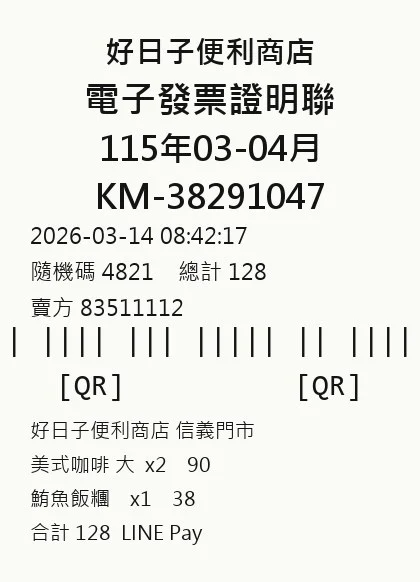
Sample input — a Taiwan e-invoice photo:
Automatic checks
- Date format, including unconverted ROC years
- Net + tax + tip ≈ total
- Taiwan invoice-number format (AB-12345678)
- Taiwan tax-ID checksum (official Ministry of Finance rule)
- Duplicate invoice numbers, and likely duplicates (same day, vendor and amount)
- Identical image files are read only once
- Valid currency codes, categories and payment methods
When the AI misreads something, your agent re-reads that image and fixes it; receipts that are genuinely unreadable keep their review flag. The AI never changes numbers just to make a check pass.
How it works
- Tell your agent where the receipt folder is (optionally attach your accountant's category list).
- The script converts PDFs, resizes images and skips duplicates.
- The agent reads each receipt against a strict field spec — anything it can't see is left blank, not guessed.
- The script validates and builds the Excel file; the agent spot-checks 3 receipts against the originals.
- You get the totals, plus how many items need review and why.
Requirements
- Python 3.9+
pip install pillow pypdfium2 openpyxl- An AI agent that can read images (Claude, Codex, etc.)
Limitations (please read)
- This is AI reading and can be wrong — the original receipts always prevail. Clear the Review sheet before using the numbers.
- A bookkeeping aid only — not tax or accounting advice. Ask a qualified accountant or tax professional whether an expense is deductible.
- Handwritten, faded thermal-paper or badly cropped receipts are less accurate and will be flagged.
- No connection to banks, government e-invoice platforms or accounting software.
- Categories are suggested bookkeeping labels, not tax classifications.
Files
SKILL.md— agent workflowscripts/prepare.py— folder scan, PDF to image, de-duplicationscripts/build_xlsx.py— validation and Excel outputreferences/schema.md— field specreferences/categories.md— default categories (English and Chinese)