
Slides maker — Turn Any Content Into a Styled Deck
Slides maker — Turn Any Content Into a Styled Deck
Take any existing content — notes, documents, data, or the output of another skill — and render it into a polished, visually designed presentation. This skill handles the design layer end-to-end: slide architecture, visual styling, AI illustration, and PPTX assembly. You bring the substance; it handles everything that would otherwise require a designer or hours in Canva.
Example
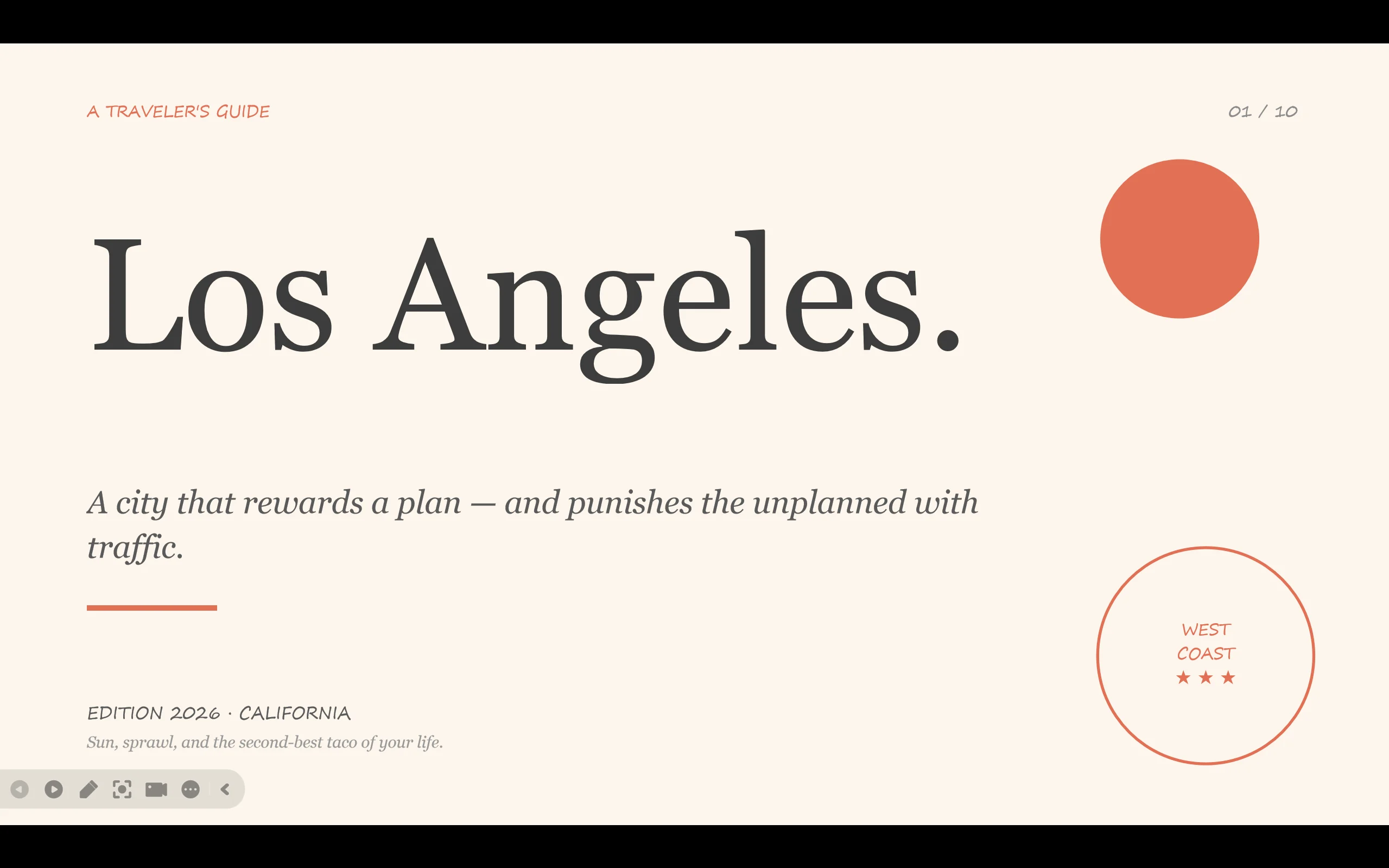
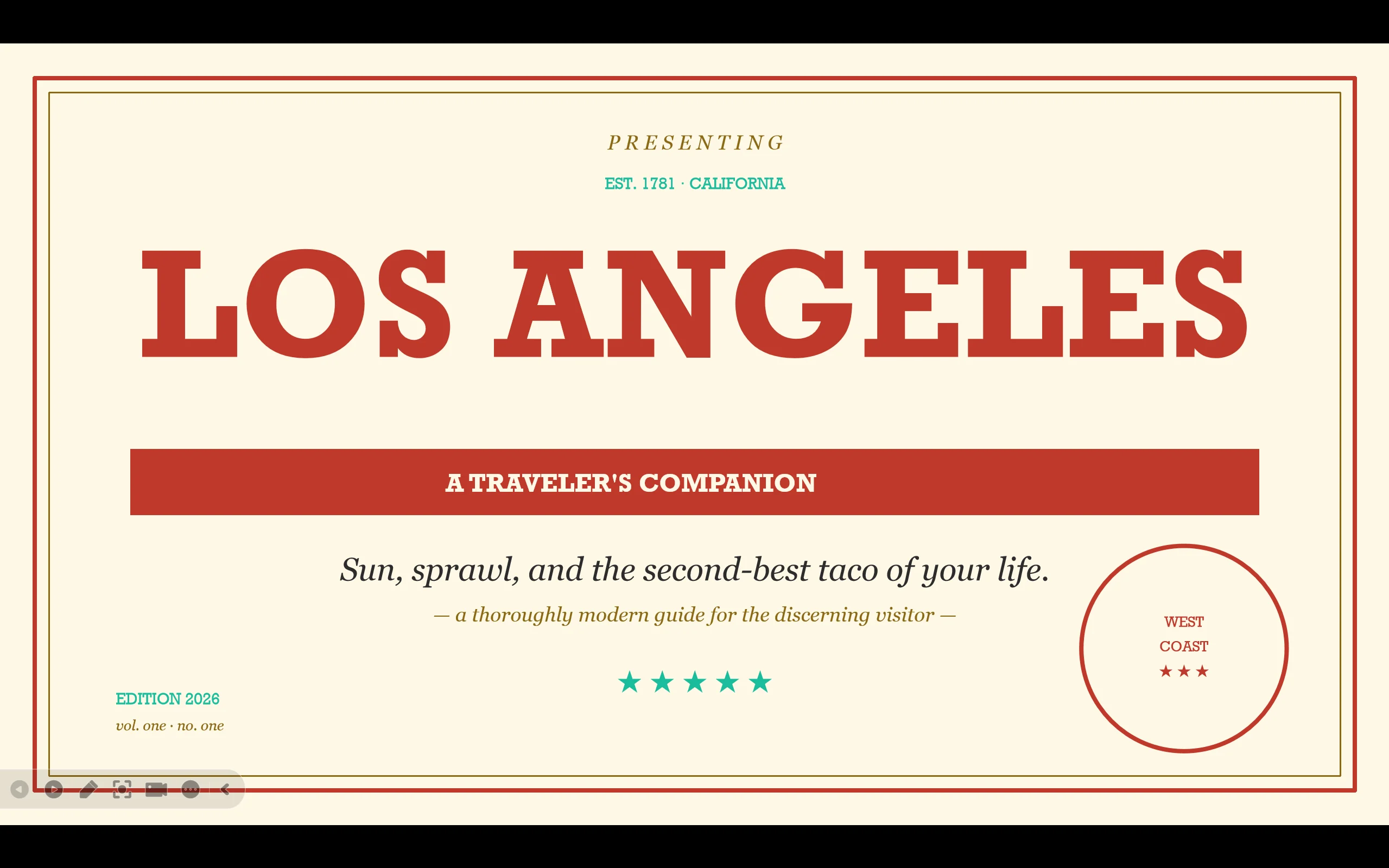
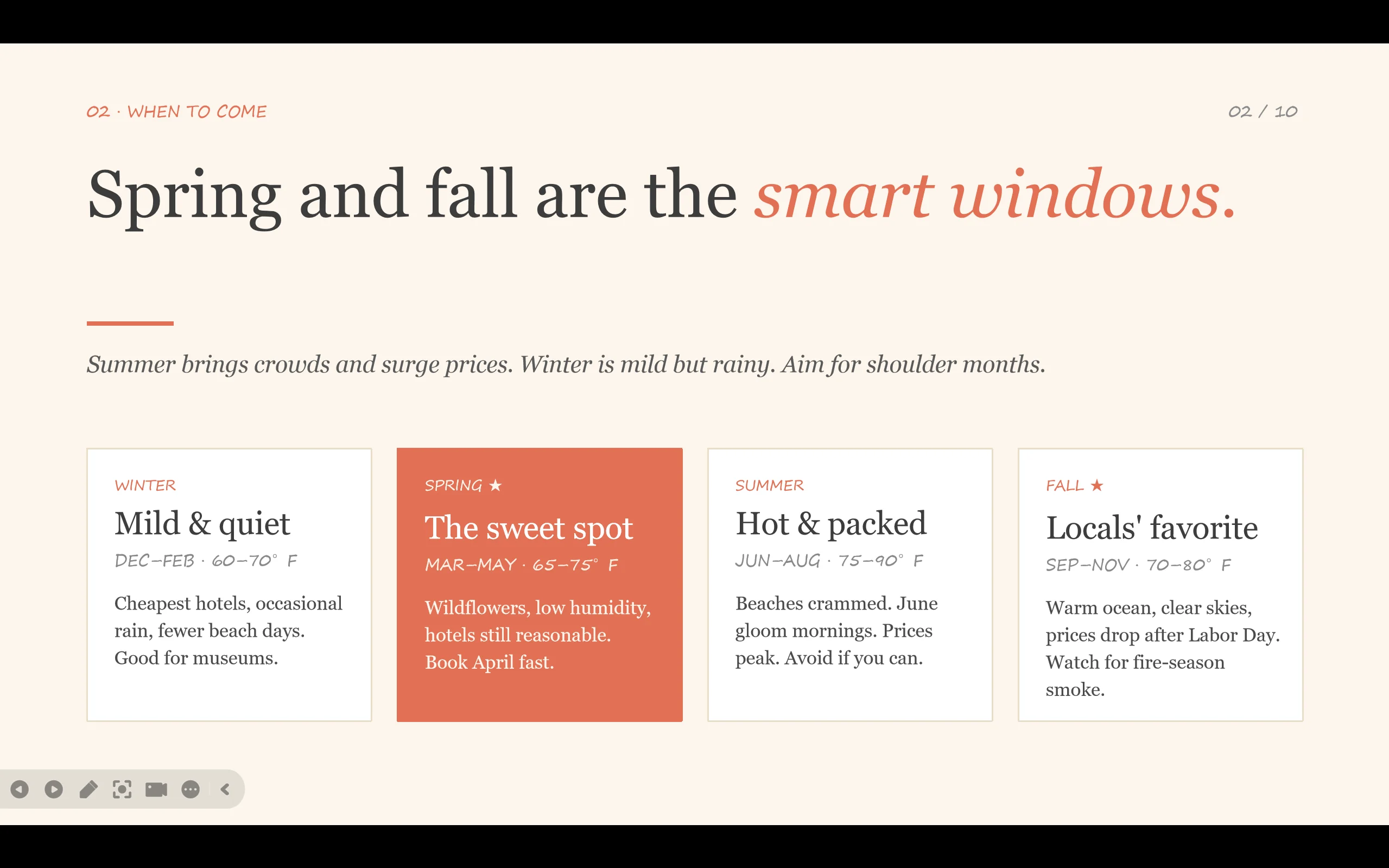
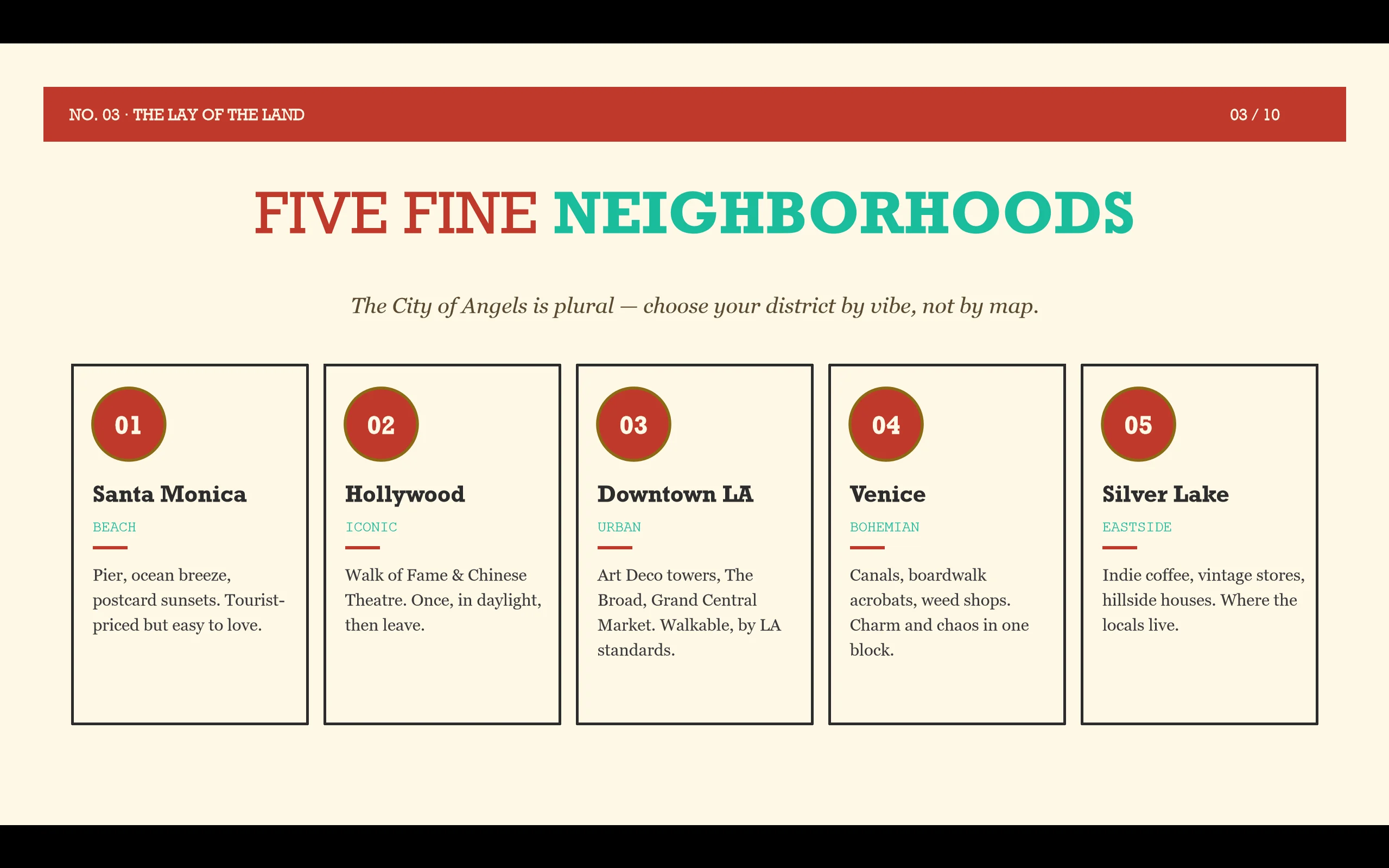
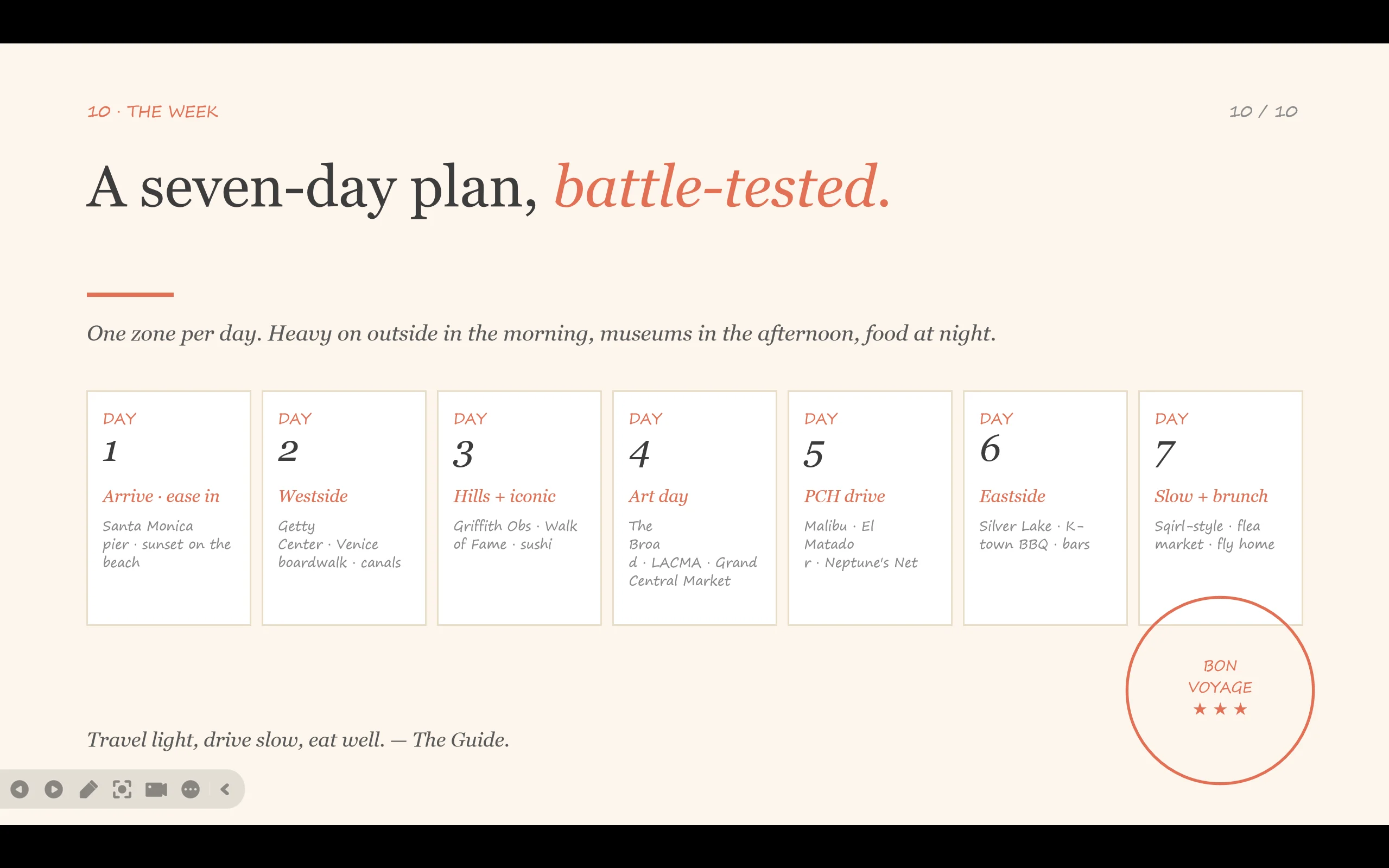
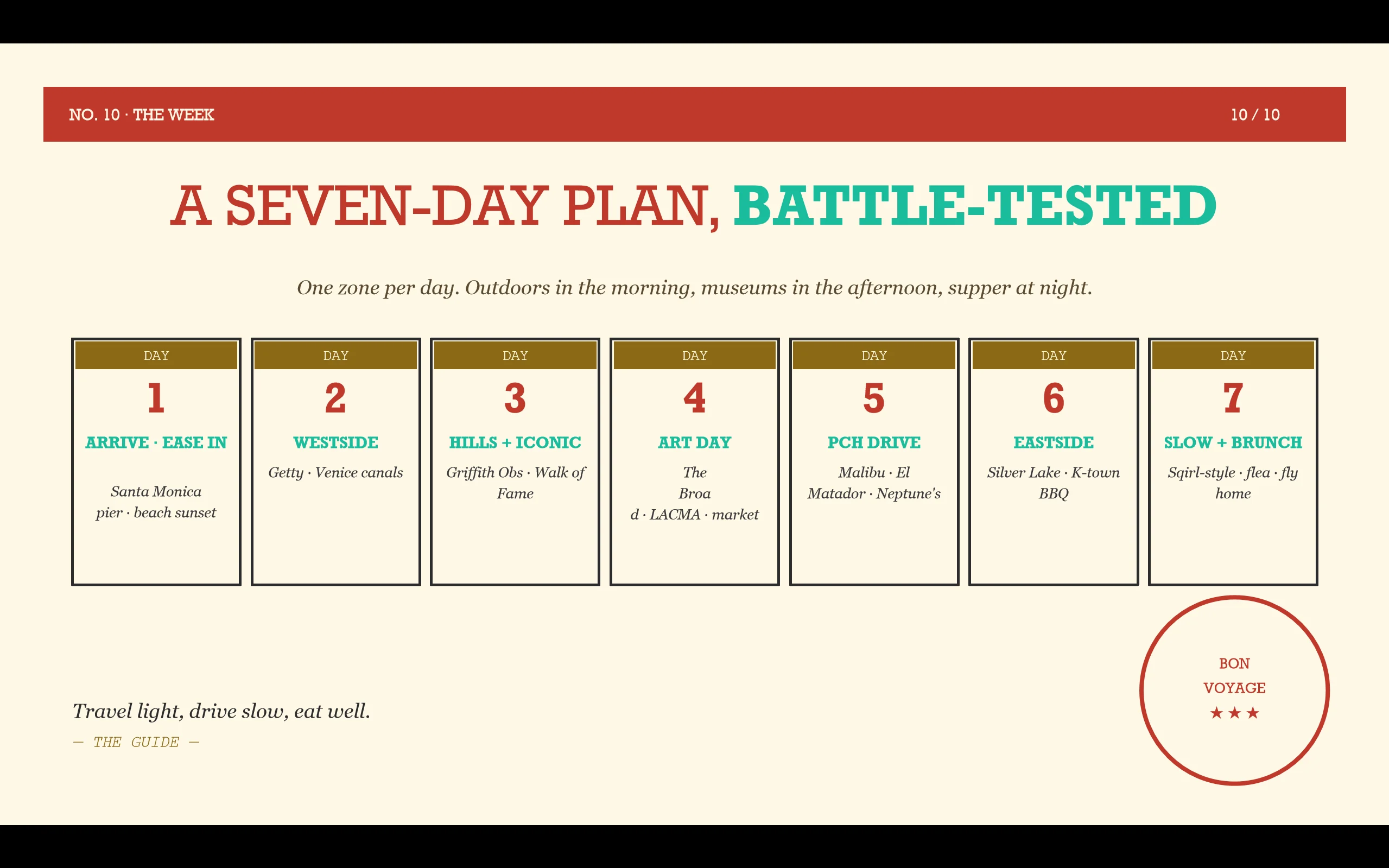
Input: Make a pptx file about the travel advice of Los Angeles with 2 different styles
Capture of the output:
When to Use This
1. You have a research report, analysis, or strategic document that needs to become a presentation A 20-page market research output or a data analysis report needs to land in a 15-minute presentation. Use this to restructure the content into slides with assertion-based titles (claims, not topic labels), apply a style that matches the audience (editorial for investors, comic-warm for internal teams), and output a .pptx file that's ready to open and present.
2. You've finished a domain skill session and need to hand off to slides
A market research skill, data analysis, or pricing strategy session has produced its output. Rather than re-typing content into a deck, hand off directly to this skill. It reads the output, structures the slide flow, selects the right style, and builds the PPTX — keeping the intellectual work intact and adding the visual layer.
3. You're preparing a pitch or stakeholder update and want it to look designed, not assembled
Generic AI can produce bullet-point slides. This skill produces slides with actual design intent: chosen color palettes, typography hierarchies, AI-generated illustrations anchored to the chosen visual style, and assertion-based slide titles that carry an argument rather than label a topic.
4. You need to repurpose an outline, notes, or data into a repeatable presentation format
Training materials, sales decks, internal briefings. Use this when the content exists in rough form and the job is to structure it into a coherent slide flow and apply a consistent visual style — without each slide requiring manual formatting decisions.
5. You want slides that match a specific aesthetic, not just a clean template
You know the audience: a young consumer brand, a Japanese market partner, a data-driven analyst team. The 17 visual styles in this skill aren't generic templates — they're named design systems (NYT Magazine editorial, Snoopy Warm Comic, Soviet Constructivism, xkcd Whiteboard) with defined palettes, typography, and visual grammar. Pick the style that matches the room.
How It Works
The skill runs a four-step path from raw content to a finished .pptx file.
Step 1 — Content structuring
Raw material is restructured into a slide-by-slide outline. Each slide gets:
- An assertion-based title — a sentence that makes a claim (""Q3 revenue grew 23%, driven by new users"") rather than a topic label (""Q3 Revenue"")
- Up to 3–4 key points
- A visual type (illustration, chart, quote, flowchart)
This step is the design judgment layer: which ideas deserve their own slide, which belong together, what the narrative arc is.
Step 2 — Style selection
Three styles are recommended based on your topic type. The skill reads your content and matches it against the style table.
Step 3 — Build path selection
| Path A: Editable HTML | Path B: Full AI Visuals | |
|---|---|---|
| How it works | Each slide built as HTML → converted to PPTX via convert.js |
Each slide rendered as a full AI image → assembled to PPTX |
| Text in final PPTX | Stays editable in PowerPoint / Keynote | Embedded in image; not post-editable |
| Best for | Business reports, iterative revision, CJK text accuracy | Art-heavy decks, keynote talks, strong visual impact |
Path A enforces four structural constraints to prevent conversion errors: all text inside <p> or <h*> tags, no CSS gradients, no background on text elements, no
background-image on <div>. These rules are applied in the first draft — not as a post-processing fix.
Step 4 — Assembly and preview
- Path A:
convert.js→ PPTX, Playwright screenshot preview of key slides - Path B:
create_slides.py→ PPTX, PNG previews shown directly
Canvas size is locked at 960 × 540 px — matching PowerPoint's LAYOUT_16x9 exactly.
17 Visual Styles
A curated gallery of 17 named design systems — not generic templates.
Tier 1 — Accessible and widely effective
Snoopy Warm Comic · Manga Educational · Ligne Claire · Neo-Pop
Tier 2 — High visual impact
Neo-Brutalism · xkcd Whiteboard · Soviet Constructivism · Dunhuang Mural · Ukiyo-e · The Oatmeal
Tier 3 — Specialist contexts
Warm Narrative · Pixel Art · Risograph · Takram Speculative · Isometric Blueprint · Fathom Data · Pentagram Editorial
Professional editorial (for business, data, and formal decks)
NYT Magazine ★ (highest versatility — works across data reports, investor decks, and industry analysis)
What Makes This Different
vs Canva, Gamma, or PowerPoint Designer
Those tools give you a canvas and let you design. You still make every layout decision. This skill makes the layout decisions for you — based on content type, audience, and a chosen design system with defined rules. The output is a complete deck, not a starting point for your own design work.
vs asking a general AI to ""make me slides""
General AI outputs bullet-point slides with no design intent. No named style, no color system, no typography hierarchy, no assertion-based titles, no illustration layer, no choice between editable text and full visual output. The gap between an AI-generated outline-as-slides and this skill's output is roughly the gap between a Word document and a
designed report.
vs hiring a designer
A designer can match aesthetics but needs to be briefed on content, structure, and audience. This skill handles content structuring (what goes on each slide), style matching (which design system fits the audience), and production (building the actual slides). For most internal decks, strategy presentations, or skill-output hand-offs, that covers the full scope of what a designer would do.
What's genuinely unique here
- 17 named visual styles with defined design philosophies — not a template library
- Two build paths with different trade-offs (editable text vs full visual)
- AI illustration per slide anchored to the chosen style (Gemini API)
- Character sheet: your personal likeness rendered in the chosen style, usable across slides
- Content-source agnostic: accepts notes, documents, spreadsheet data, or any domain skill output
- Assertion-based slide titles built into the structuring step — not optional


