
VideoToBlog | Upload a video, get a post
Your YouTube video, written up as a Naver Blog post
You shot the video and posted it, but turning that same content into writing means playing it back from the start to transcribe it, grabbing screenshots, shrinking the photos, and splitting it into sections. One video can eat up a whole evening.
VideoToBlog does that part for you. Drop a video into the chat and it transcribes what's said, pulls in only the frames worth keeping, and hands back a post organized into a title, subheadings, and paragraphs, plus ready-to-paste files. No install, no commands, it all runs in the Capafy cloud.

An actual result made from a sample video (a 2.5-minute home-cafe latte clip).
How you use it
Write a Naver Blog post from this video. Keyword: "home cafe latte," and match the tone to the video.
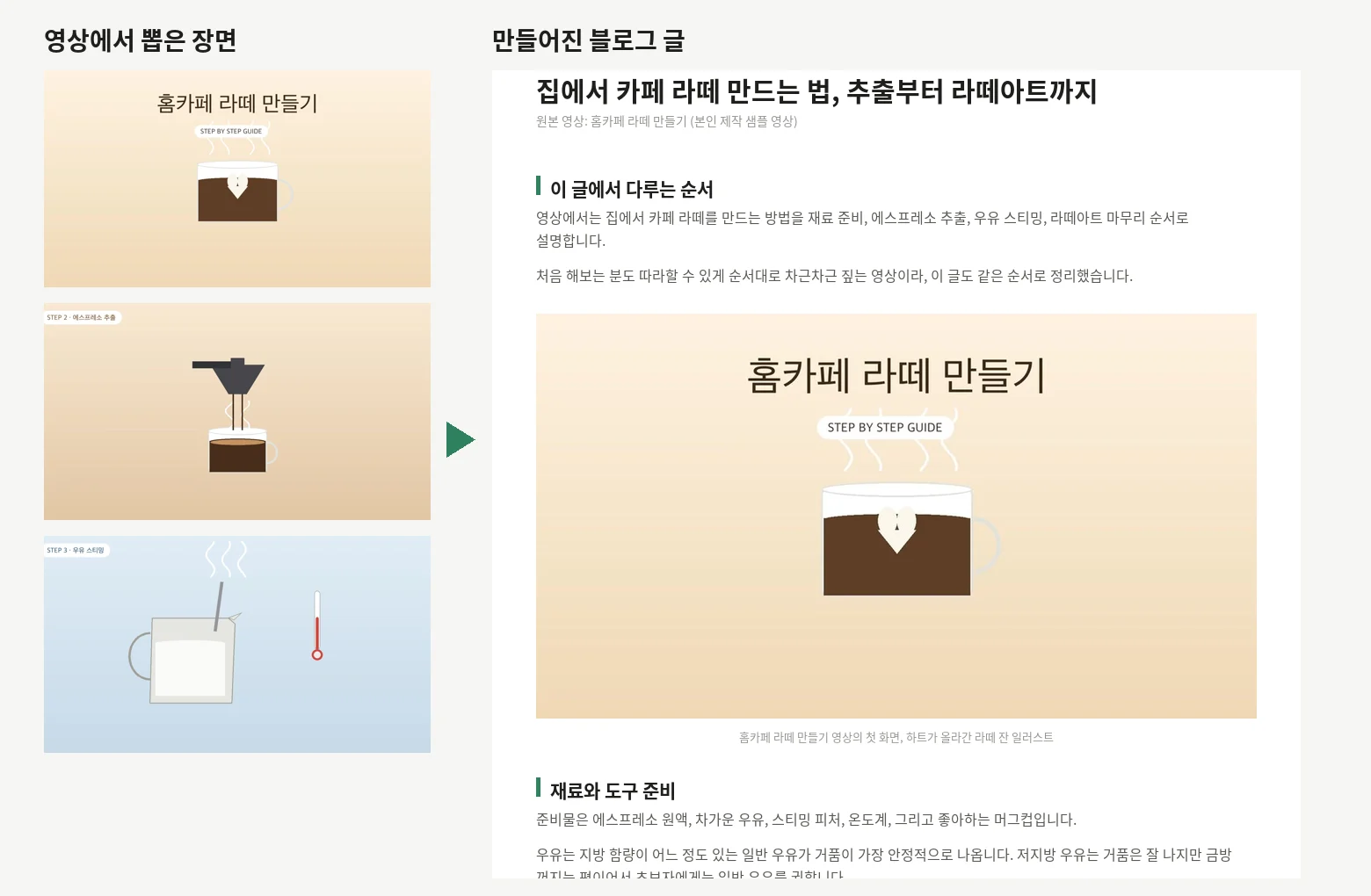
On the left, frames pulled from the video; on the right, the opening of the post it wrote. Each frame is placed where it fits, under the relevant subheading.
What you get
| File | What it's for |
|---|---|
post.html + images/ |
Inline-styled HTML. For Tistory's HTML mode and for pasting into Naver Blog |
post_standalone.html |
A single file with the images embedded. Opens without a folder, so it's easy to copy |
post.md |
A Markdown version. For places that won't take pasted HTML, like Brunch (a Korean publishing platform), when you just need the text |
images/*.jpg |
Body images resized to 960px wide and under 1 MB |
preview.png |
An image that previews how the finished post is laid out |
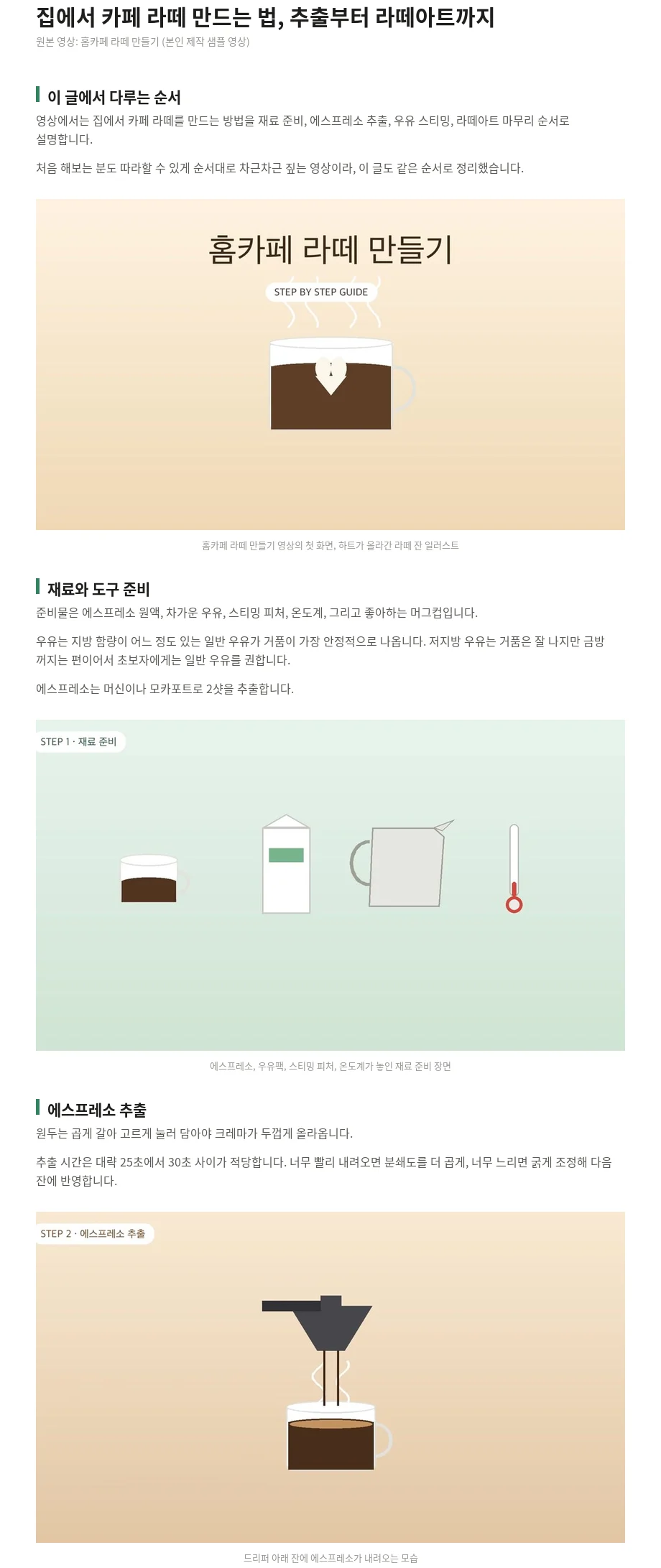
A preview of the post built from the sample above. Six subheadings, six images.
How it works
- Transcribe. It turns the speech in the video into text with timestamps (faster-whisper, Korean included).
- Pick frames. It pulls candidates at scene changes and at regular intervals, then filters out blurry frames and near-duplicates.
- Write. The AI reads the transcript and, working from the list of candidate frames, writes the title, subheadings, paragraphs, image placements, and captions.
- Check. A script scans for repeated phrasing, numbers that aren't in the transcript, and any AI-sounding wording or emoji, then fixes them and rebuilds.
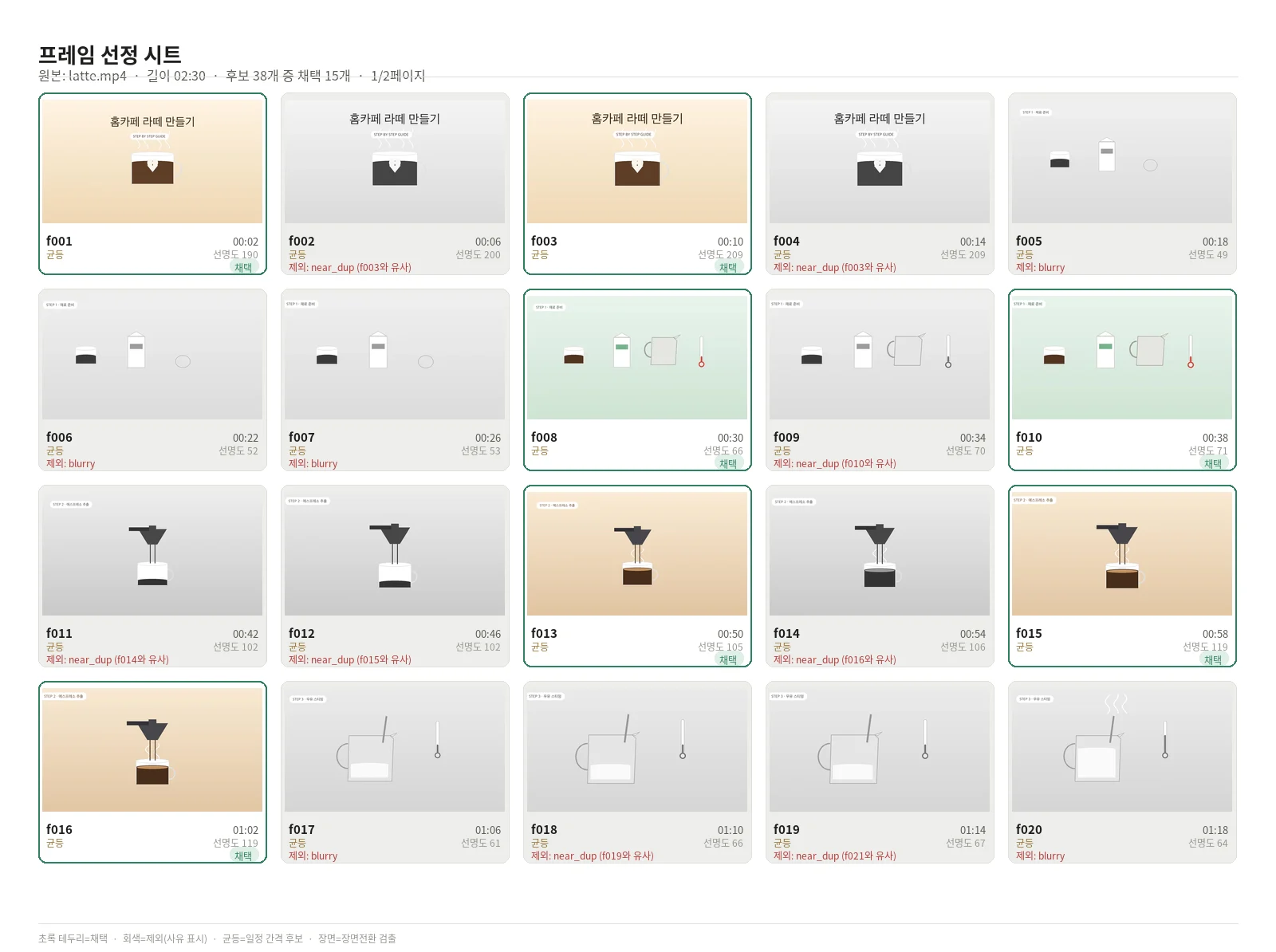
A selection sheet where 15 of 38 candidate frames made the cut. A green border means selected; gray means dropped for blur or duplication.
It only uses what's said in the video
Every fact in the post comes only from what's spoken in the video. It won't add numbers, reviews, first-person testimonials like "I tried it myself," or product recommendations that aren't in the video. When speech recognition mishears a word, it's corrected only when the context makes it clear, and any correction is noted in the reply. Words it isn't sure about are left out or reworded. It also skips emoji and AI-sounding filler like "in conclusion" or "through this."
What this agent doesn't do
- Fetch from YouTube links. You need to upload the video file yourself.
- Post to your blog for you. You take the files and paste them in.
- Pass someone else's video off as your own. It keeps an honest source line.
- Guarantee search rankings, views, or revenue.
- Generate drawings or photos. It only uses frames that are actually in the video.
Good to know
- Video files: MP4, MOV, MKV, WEBM, up to 30 minutes, up to 2 GB.
- Timing: for the 2.5-minute sample, transcription and frame extraction took somewhere between a minute and a half and about three minutes (estimated on a 2-CPU setup; it varies with your run environment). Longer videos take longer, so budget 5-10 minutes for anything over 10 minutes. The very first run downloads the speech model, which adds a little time.
- Speech recognition can slip on proper nouns, jargon, overlapping speech, and loud background music. Give the transcript a read before you publish.
- The preview PNG is a rough layout, not a browser rendering. After you paste, check the spacing around your subheadings yourself. The Naver Blog editor can shift margins when you paste.
- A video with little to no speech leaves the post short on material, so you'll get a shorter article.
- Use it only on videos you own or have the right to turn into writing.
FAQ
Q. What counts as one request? Taking one video all the way to one finished post is one request. Follow-up tweaks like "make it shorter," "change the tone," or "swap the third image" are part of the same conversation about that result, so they don't count separately. A different video is a new request.
Q. Does my video leave the system? Everything is handled inside the agent's cloud workspace. The only things pulled from outside are the fonts and the speech-recognition model, downloaded once on the first run.
Q. Does it work with English videos? It detects the spoken language automatically. The post is written in the video's language; if you'd rather have it in Korean, just say so. It stays faithful to the original.
Q. What if faces show up in the images? Since it uses frames straight from the video, any face that appears in the video can end up in the images. Check them before you publish.
Q. Questions? [email protected]