SlideTalk — PDF Slides to Narrated Lecture Video
SlideTalk — PDF Slides to Narrated Lecture Video
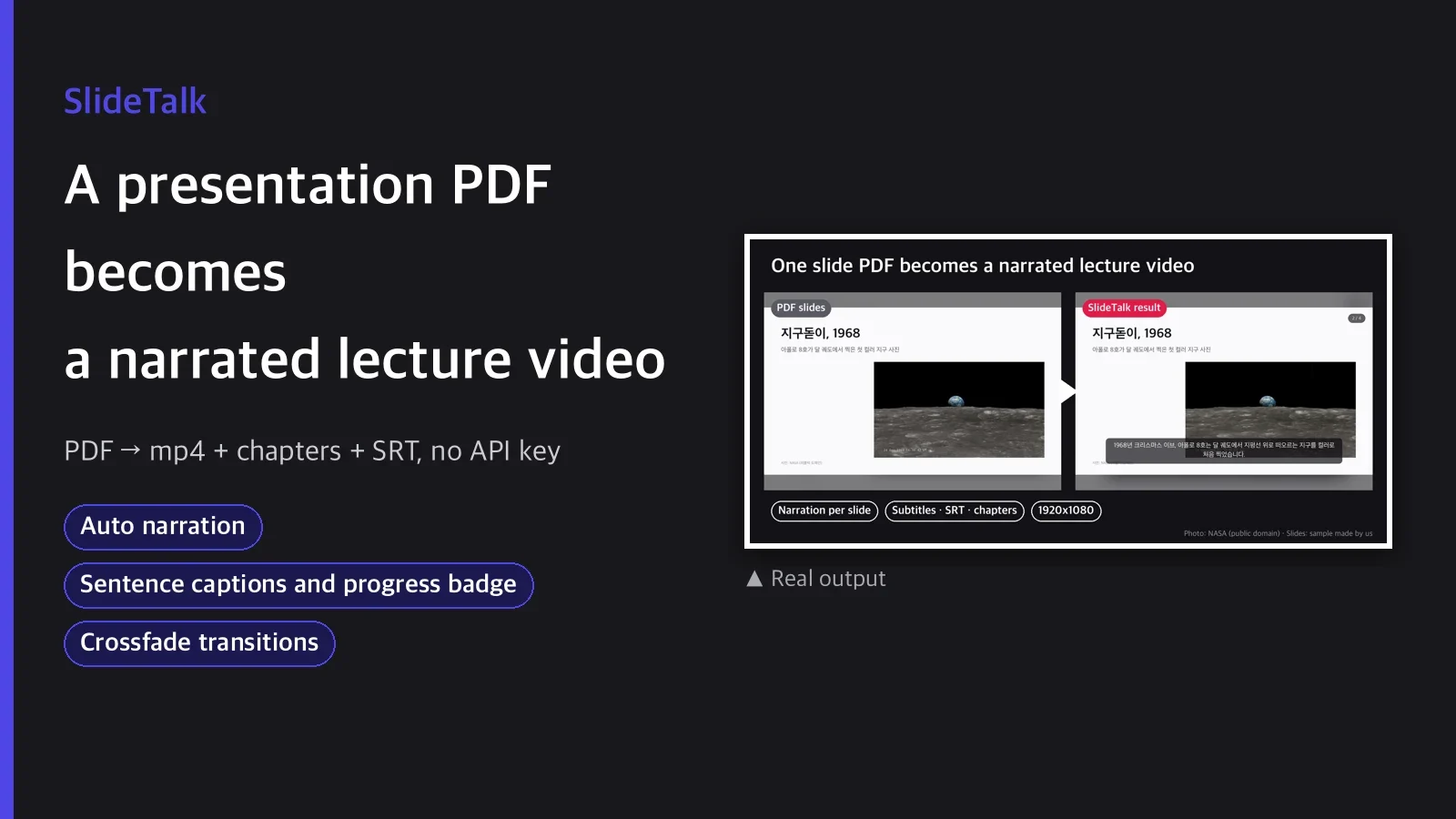
Your slides are done, but making a video is another story. You talk in front of a mic while
flipping slides, reshoot when you stumble, add subtitles separately, and write chapter timestamps
by hand after watching the video several times. One 20-slide lecture takes half a day of
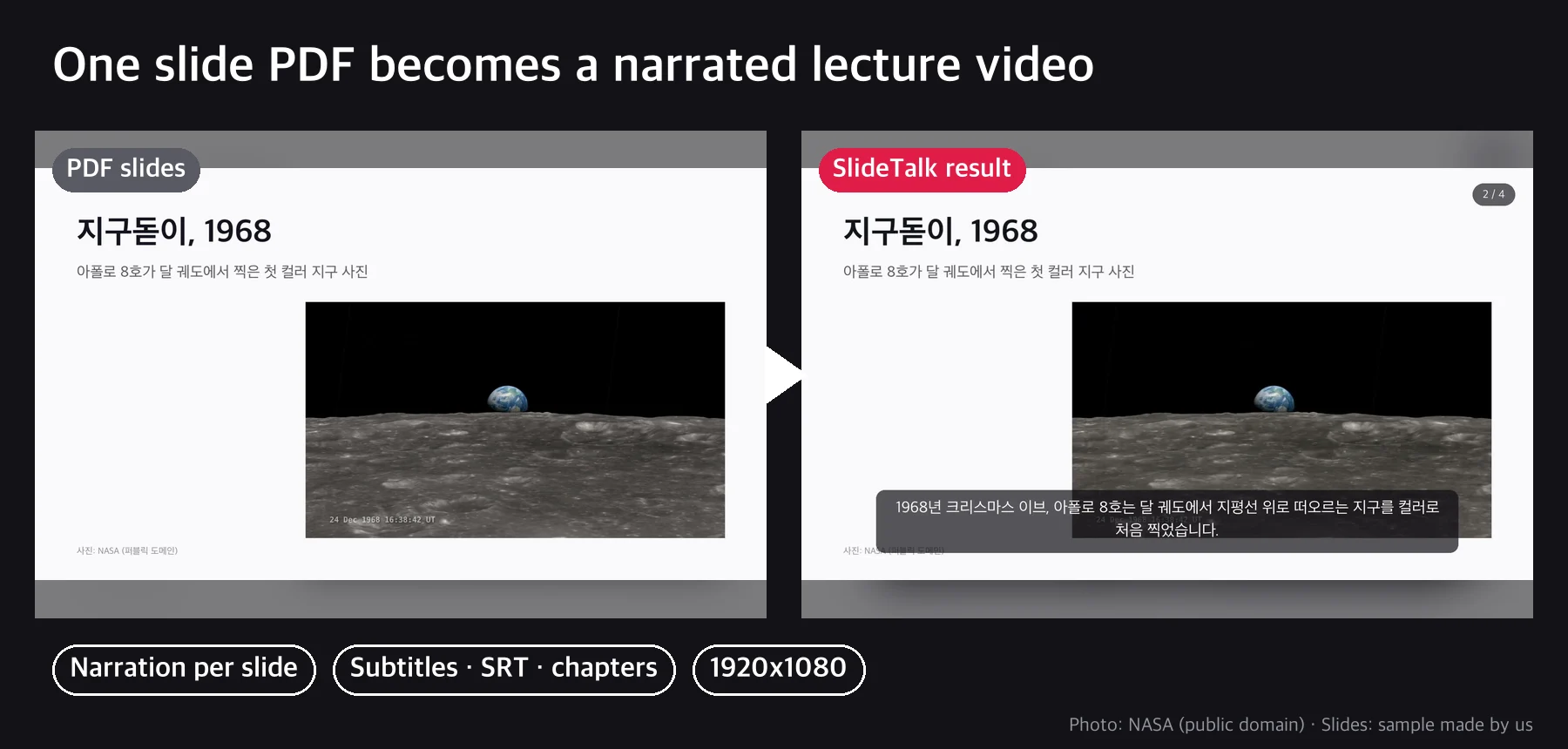
recording and editing. With SlideTalk you put in one PDF and skip all that; per-slide narration,
captions, chapters and SRT come out in one run.
Pipeline
PDF ──extract.py──▶ slide PNGs + notes.json (draft)
                            │
                  (the agent fills in the narration script)
                            ▼
notes.json (done) ──narrate.py──▶ per-slide mp3 + timing
                            │
                            ▼
                    ──build.py──▶ lecture.mp4 + chapters.txt + lecture.srt
The voice is TTS instead of your own recording, and the agent reads the slide content and writes
the narration script naturally, like a lecture (or uses your existing speaker notes as is).
Actual commands
uv run scripts/extract.py --pdf slides.pdf --out out/
# → fill the narration field in out/notes.json (by the agent, or from speaker notes)
uv run scripts/narrate.py --notes out/notes.json --out out/
uv run scripts/build.py --meta out/narration_meta.json --assets out/ \
  --out out/lecture.mp4 --crossfade 0.4
That is three lines. For 5 slides it took about 73 s measured (0.6 s extract + 5 s speech
synthesis + 67 s video assembly, on Apple Silicon). The finished lecture.mp4 is 1920x1080,
h264/yuv420p, AAC stereo, with loudness set to -16 LUFS (loudnorm 2-pass, re-measured error
0.01 dB).
What's included
| Item | Contents |
|---|---|
scripts/extract.py |
PDF → slide PNGs (1920x1080, letterboxed) + page text + draft notes.json |
scripts/narrate.py |
notes.json → edge-tts narration mp3 + sentence-level timing (narration_meta.json) |
scripts/build.py |
Slides + narration → mp4 (caption/badge/crossfade options) + chapters.txt + lecture.srt |
guides/notes-format.md |
notes.json schema and narration writing tips |
guides/tts-and-licensing.md |
Commercial use risks of edge-tts, stated openly |
Usage examples
1. Internal onboarding material: export the new-hire training PPT to PDF, put it in, and use
the script in the speaker notes as the narration to make a self-paced video.
2. YouTube lecture channel: put in a topic lecture PDF such as "Excel pivot table basics" and
upload with captions burned in. Paste chapters.txt into the description and YouTube builds the
chapter bar automatically.
3. Product intro video: join a sales deck with smooth crossfade transitions and use it as a
short intro video on a landing page.
What you need
uvand Homebrewffmpeg. Both free; just install them.- Internet connection: narration speech synthesis (edge-tts) is an online call. No API key or
sign-up needed. - Write a narration script for each slide (the agent can write it for you), or have your existing
speaker notes ready. - edge-tts is not an official Microsoft API; it is an unofficial open-source client that calls a
browser feature. It is free to use, but for ad-monetized commercial videos we recommend looking
at the alternatives inguides/tts-and-licensing.md(such as a paid Azure Speech subscription). - Do not use it for deepfakes that impersonate real people or make words seem to come from real
people. This skill was not designed for that.
Recommended for
- You already have slides and also speaker notes or a draft script
- You need to produce many YouTube lectures quickly, with chapters and captions
- Informational content where a non-human voice (even if it sounds like TTS) is fine
Not recommended for
- When you need rich production such as background music, sound effects or transition animations
(it does no more than slides + narration) - Brand videos that need the tone and intonation of a real human voice
- Formats where several speakers alternate on one slide (one voice per slide)
FAQ
Q1. Can I put in a PPTX directly?
No, export to PDF first. PowerPoint, Keynote and Google Slides all have "Save as / Download as
PDF," so it is just one step.
Q2. Can I change the voice to a language other than Korean?
Yes, if edge-tts supports the language. Change the voice value in notes.json to a voice for
that language and write the narration script in that language.
Q3. The caption text is too big or too small.
Adjust it with build.py --caption-size. To turn captions off and use only lecture.srt, use--no-captions.
Q4. Can I use a different voice for each slide?
Yes. Set voice separately in a slide's entry in notes.json and only that slide uses another
voice (for example, a different tone just for question slides).
Q5. Does it work for long decks of 100+ slides?
It runs, but slide file names have two digits (slide_01 to slide_99), so sorting breaks from
100 slides on. extract.py shows a warning; we recommend splitting longer material into several
videos.
Purchase notes
After downloading, unzip the package/ folder and use it as is. SKILL.md guides the whole
procedure, and the three scripts in scripts/ each run directly with uv run. There is no
separate install or build step.
The photos in the example slides are public NASA photos (public domain), and the slides and narration script were written by us as an example.
APIs externas
Microsoft Edge TTS