

3D Print Anything — Idea to Print, No CAD
3D Print Anything — Idea to Print, No CAD
From a text description to a finished physical object on your Bambu Lab printer. Zero CAD skills. Zero Blender expertise. The full pipeline runs inside Claude Code.
The Problem
You bought a 3D printer. It's collecting dust.
- CAD takes months to learn. Fusion 360, SolidWorks, Blender — each one is a full-time skill. You just want to print things.
- Text-to-3D AI generates unprintable meshes. Non-manifold edges, zero-thickness walls, floating geometry. The model looks fine on screen but fails in the slicer — or worse, fails 3 hours into a print.
- Manual mesh repair is a rabbit hole. You opened Blender to fix one error, spent 45 minutes on YouTube tutorials, and gave up.
- Failed prints waste filament and time. You don't know there's a problem until you come back to a pile of spaghetti.
Before / After
Before (manual workflow)
- Describe idea → generate with text-to-3D AI
- Import into slicer → errors everywhere
- Open Blender → 45–90 minutes of mesh repair tutorials
- Slice again → manually upload → start print
- Come back 3 hours later to find spaghetti
Time: 2–4 hours. Success rate: ~50%. Filament wasted: a lot.
After (with 3D Print Anything)
/3d-print-anything a small dragon figurine, ~8cm tall, standing pose- Skill generates model, repairs mesh, checks printability, slices, uploads, starts print
- Get notified when done
Time: ~10 minutes of your attention. The skill handles everything else.
| Manual | Generic AI + manual fix | 3D Print Anything | |
|---|---|---|---|
| CAD skill required | Months of learning | Partial | None |
| Mesh repair | Manual in Blender (45–90 min) | Manual | Automatic |
| Printability check | Experience-based guessing | None | Automated GO/NO-GO gate |
| Time per model | 2–4 hours | 45–90 min | ~10 min attention |
| Failed print rate | High (geometry surprises) | Medium | Low (pre-validated) |
| Printer integration | Manual upload + start | Manual | Automatic via LAN |
| Camera monitoring | None | None | AI-powered failure detection |
Break-even: If your time is worth $15/hour, this skill pays for itself the first time it saves you 90 minutes of Blender mesh repair.
What You Actually Get
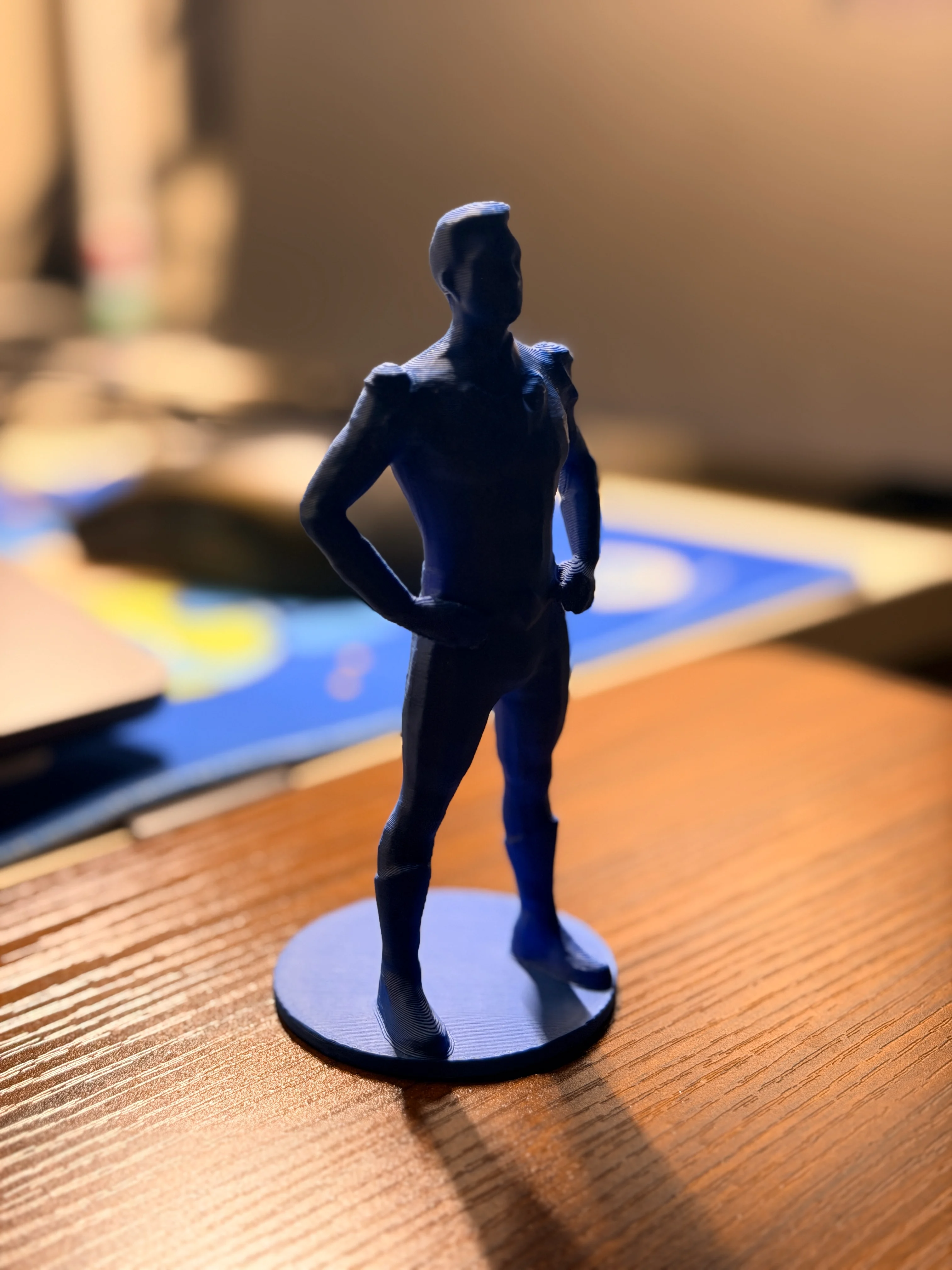
- A print-ready 3D model — not just a pretty render. Mesh passes non-manifold, wall thickness, and overhang checks before anything goes to the printer.
- A sliced file optimized for your printer — correct supports, layer height, and infill for your Bambu Lab P1S/X1/A1.
- A print that starts automatically — uploaded via FTPS, launched via MQTT. No clicking through BambuStudio menus.
- Early failure detection — printability assessment catches 80%+ of issues before you waste filament. GO/NO-GO gate at every stage.
- Optional camera monitoring — AI-powered failure detection via your printer's built-in camera. Alerts on spaghetti, detachment, and blob buildup.
How It Works
3 commands to your first print:
Step 1 — Describe what you want
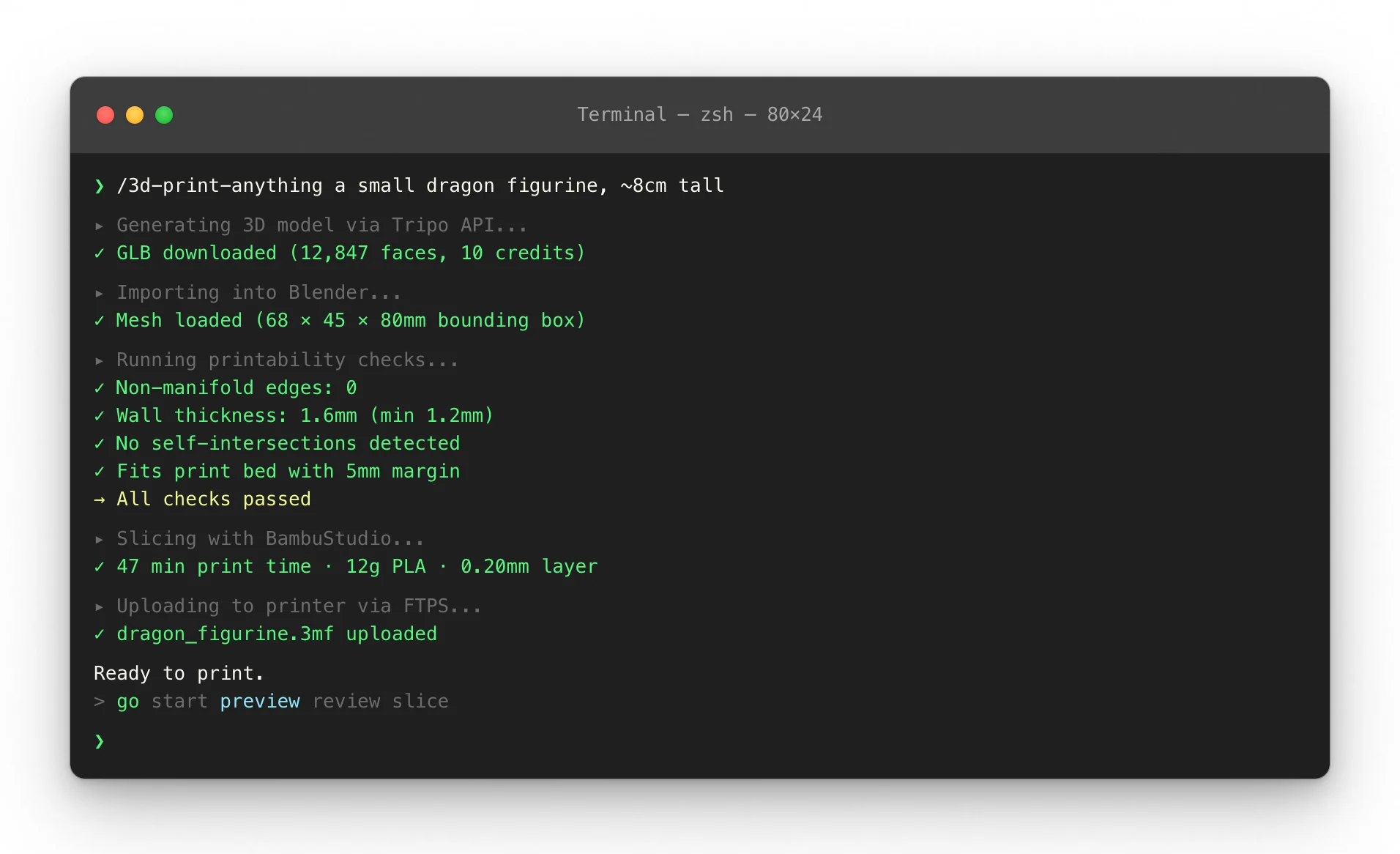
/3d-print-anything a small dragon figurine, ~8cm tall, standing pose
Step 2 — Skill runs the full pipeline
Generating 3D model via Tripo API...       ✓ GLB downloaded
Importing into Blender...                  ✓ Mesh loaded
Running repair + printability check...     ✓ GO — wall thickness OK, no non-manifold
Slicing in BambuStudio...                  ✓ 47 min print time, 12g PLA
Uploading to your printer...               ✓ dragon_figurine.gcode.3mf
Waiting for your confirmation...
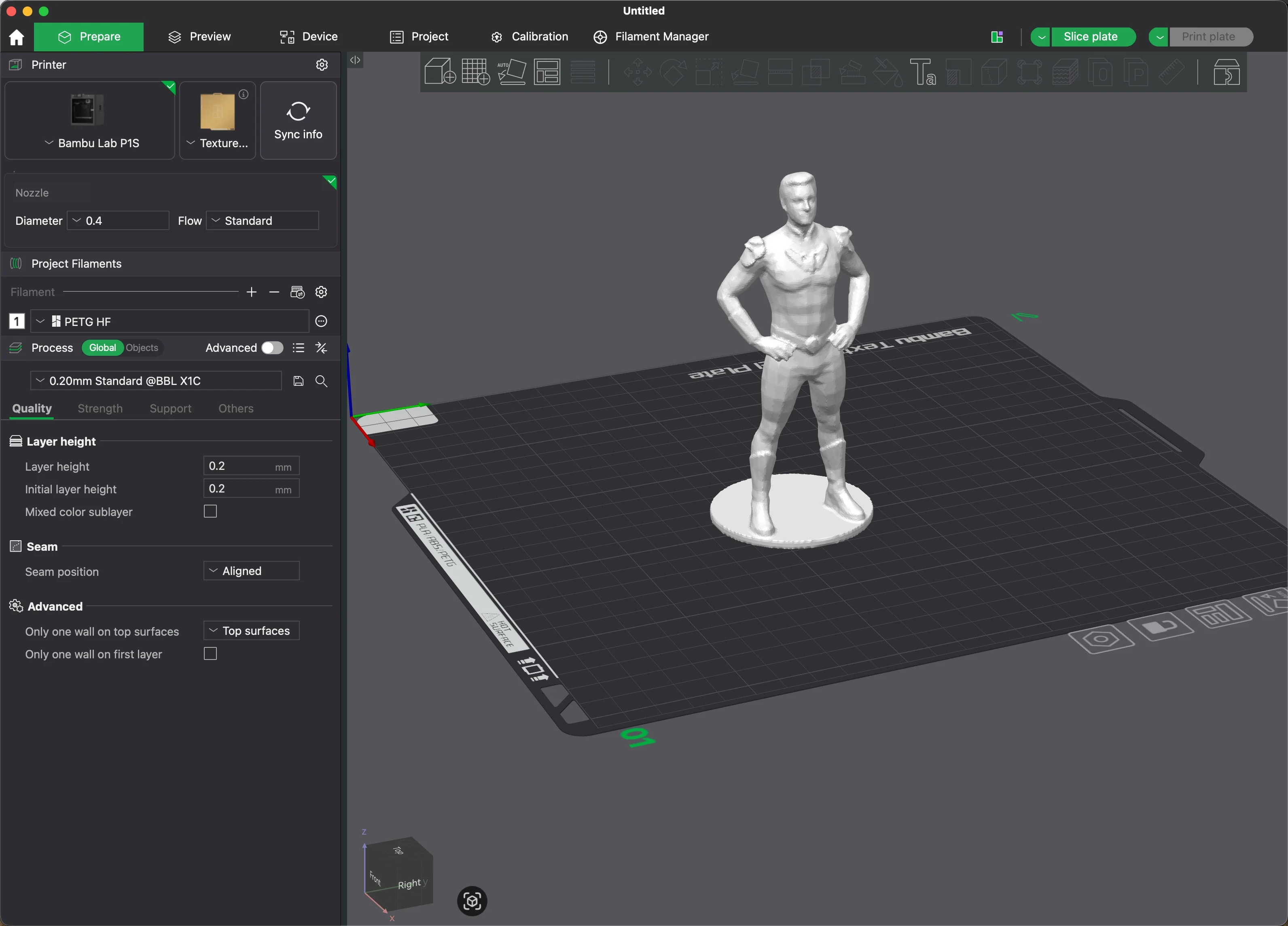
Step 3 — Review and confirm
The skill shows you print time, filament usage, and a layer preview. Type "go" to start printing.
Setup takes ~10 minutes (mostly one-time printer configuration, not skill configuration).
Three Ways to Generate Models
| Method | Input | Cost | Quality | Best for |
|---|---|---|---|---|
| Text to 3D | Describe it in words | ~10 credits | Good | Quick prototypes, simple shapes |
| Single image | One reference photo | ~30 credits | Better | Objects you have a photo of |
| 4-view images | Front/left/back/right photos | ~20 credits | Best | Characters, detailed objects |
Tripo's free tier gives 200 credits/month (~20 models). The skill automatically picks the best method based on your input.
Requirements
Before running the skill, you need:
| Requirement | Version / Notes |
|---|---|
| Claude Code | Any recent version |
| Bambu Lab printer | P1S (full support), X1/X1C (full support), A1/A1 mini (partial) |
| Bambu Lab Developer Mode | Enable on printer: Settings → Network → Developer Mode |
| Blender | 4.x with BlenderMCP plugin enabled |
| BambuStudio | Any recent version, installed locally |
| bambu-mcp | MCP server for printer communication |
| Tripo API key | Free tier: 200 credits/month (~20 models) |
Setup takes ~10 minutes, mostly one-time printer configuration.
Printer must be on the same LAN as your computer. Developer Mode must be enabled for automated upload + print launch.
vs. Doing It Yourself
| Approach | Cost | Time per model | Skill required | Failure rate |
|---|---|---|---|---|
| Learn Fusion 360 | Free (software) | 4–8 hours (first month) | Months of practice | Medium (design errors) |
| Hire a 3D modeler | $50–200/model | 1–3 days turnaround | None (but expensive) | Low |
| Text-to-3D AI + manual fix | Free (your time) | 45–90 min | Blender basics | Medium (mesh issues) |
| 3D Print Anything | $19.99 one-time | ~10 min | None | Low (pre-validated) |
The skill doesn't replace learning CAD — if you want full design control, Fusion 360 is the right tool. This skill is for when you have an idea and want a physical object on your desk tomorrow, not next month.
Known Limitations
Multi-part assemblies need manual splitting.
The pipeline generates single-piece models. For objects with moving parts or separate components, describe each part separately and assemble physically after printing.
Character poses can't be adjusted after generation.
If the AI generates a character with arms in the wrong position (e.g., both arms forward instead of at sides), you'll need to regenerate with more specific pose instructions. Poses are baked into the mesh at generation time.
BambuStudio slicing requires GUI on macOS (known CLI bug).
The skill opens BambuStudio and walks you through slicing — you click Slice, then Export. This takes ~60 seconds. A fully automated CLI slice is on the roadmap.
A1 mini camera monitoring is untested.
Print launch works on A1 mini, but camera-based failure detection hasn't been validated on this model yet.
Privacy & Security
- Your model data stays local. 3D models are processed on your machine via Blender and BambuStudio.
- Tripo API receives your text description (not your files) to generate the initial model. See Tripo's privacy policy for details.
- Printer communication is LAN-only. No cloud relay. The skill talks directly to your printer via MQTT on your local network.
- No Bambu Cloud login required for local LAN printing.
FAQ
Q: Do I need to know Blender?
No. The skill runs Blender automatically via the BlenderMCP plugin. You never open the Blender UI unless you want to inspect something yourself.
Q: What if the model doesn't look right after generation?
The skill shows you a viewport screenshot at the repair stage. If you don't like the shape, regenerate with different instructions before anything goes to the printer.
Q: Can it print in multiple colors?
Single-color prints are fully automated. Multi-color prints (using the AMS) require manual color assignment in BambuStudio — the skill walks you through it.
Q: Does it work with non-Bambu printers?
Not currently. The skill uses Bambu-specific MQTT for print launch and camera monitoring. Marlin/Klipper support is on the roadmap.
Q: How many Tripo credits does a model use?
- Text-to-model: ~10 credits
- Single reference image: ~30 credits
- 4-view reference images (best quality): ~20 credits
Tripo's free tier gives 200 credits/month — that's roughly 20 models.
Q: What if the print fails?
The printability check catches most issues before printing. If something slips through, the optional camera monitoring can detect spaghetti, detachment, or blob buildup mid-print and alert you.
What's Included
- Complete SKILL.md with the full 9-step pipeline
- Knowledge base: Blender modeling techniques, 3D printing materials & parameters, failure case library
- Reference scripts: Tripo API integration, mesh repair, printability checks
- Tripo multiview image prompt templates for best-quality model generation
Updates & Support
- Current version: v1.0.0 — working on Bambu P1S / X1 / X1C
- Roadmap: Automated CLI slicing, Klipper support, multi-color automation
- Issues / feedback: Open an issue or email support
30-day money-back guarantee. If the skill doesn't work in your setup and we can't fix it, full refund, no questions asked.
API externas
Tripo API Key


